
Moosend Review 2026: Is this THE email tool for you?
 Mor Mester
Moosend has been on our list of recommended email marketing platforms for over 7 years, and for good reason. It has all the features you may expect from a platform like it and very good pricing.
Since our last review, Moosend has refreshed both its branding and its workflow editor. Naturally, I was eager to do a full 2026 update of this Moosend review.
I signed up for a new account and walked through the platform. The same steps you’ll take as a new Moosend user. Having worked at an email marketing company for 5 years, I know what to look for and test a platform.
I’ll tell you what I love and what I don’t love, and the whole run-through of the platform using our review methodology and scoring system.
Moosend Review Overview
Looking for a quick answer? Here’s the short version of what I discovered testing Moosend.
- Moosend has all the features you’d want to see from an SMB email tool.
- Moosend is excellent value for money and offers a 30-day free trial.
- The platform is easy to use and quick to learn.
- Automation and segmentation tools make targeting easy. Ready-made workflows help you set up automations fast.
- Support is quick, practical, and helpful. There is a live chat and a knowledge base full of articles and videos.
- While Moosend may not be the ideal fit for advanced ecommerce (which I’ll touch on shortly). They continue to be an excellent choice for SMBs and newsletter-focused senders.
👉 If you want an email marketing platform that has powerful automation for a low price, Moosend is for you. Give it a try today.
You will get a 30-day free trial and a 30% annual discount after that.
Moosend’s Core Features
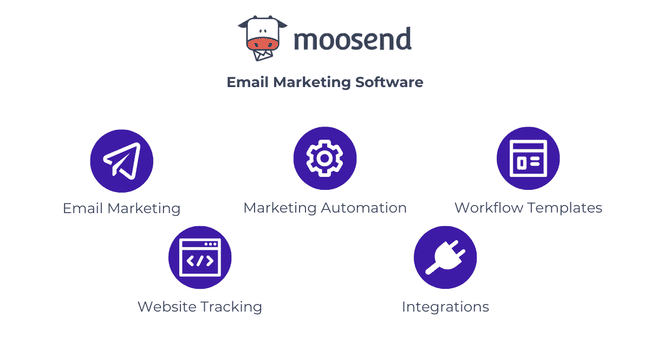
- Drag and Drop Editor: Moosend gives you a user-friendly editor for building emails, landing pages, and forms.
- Email Templates: Choose from 115+ pre-made email templates to get your campaign started. I like the templates, they are clean and modern-looking.
- Marketing Automation: Build automated email sequences with the flexible workflow editor that keeps everything organized.
- Automation Workflow Templates: Ready-made automation templates help you quickly set up workflows like welcome emails.
- A/B Testing: Create campaigns with different content and compare how they perform.
- Integrations: Connect your Moosend account directly to 42 third-party services. Or use Zapier to sync to all CRM, eCommerce, or lead generation software you use.
- eCommerce: Pre-made blocks pull product listings from your web store into emails.
- Web Tracking: Sync your website to track subscriber journeys in depth and see how many sales come from your campaigns.
Moosend Pros & Cons
Pros:
- It’s easy to use: Moosend promises to be an intuitive email marketing tool, and it keeps its promise. The drag-and-drop editor is very intuitive, and creating campaigns and managing your list and automation could almost not be easier to get started with.
- Straightforward automation and email flows: If you’re looking to set up an automation, it simply works. None of the complexity of enterprise-level features like advanced lead scoring or overly technical workflows. What I liked is how easy it is to add multiple triggers. In my test, automating a welcome email flow took me only half an hour to set up completely.
- Quick and friendly customer support: 24/7 live chat and email support on all plans, including the free trial. The help center articles and videos helped me quickly find most of the info in our tests.
- Complete mobile editor: Most email marketing tools’ mobile apps are limited to previewing emails and checking stats. With Moosend’s mobile version, you can do almost everything. Edit campaigns, send or schedule emails, access reports, and activate automations.
- Moosend is 43% cheaper than Mailchimp. It’s excellent value for money, especially considering that all features are included in one plan. Pricing starts at just $7 per month for 500 contacts, with unlimited email sends and full access to all Pro features.
On top of that, we negotiated an extra 10% off when you sign up for our trial here through our link. It’s stackable with the standard 20% annual discount.
Cons:
- No freemium plan: Moosend dropped its freemium option and replaced it with a generous free trial with all Pro features.
- Shopify integration only through Zapier: A lack of native integration means Shopify customers will have to integrate through Zapier. We’d like to see a native Shopify integration.
- Limits A/B testing to 2 versions: Moosend has adequate email A/B testing. If you have a big list and want to test more than 2 versions of content, subject line, or sender name at the same time – it’s called multivariate testing – you’ll have to send them in separate emails.
- SMS is missing: Moosend doesn’t have SMS sending, so if you want to combine email with SMS, you’ll have to connect to an SMS marketing service.
Is Moosend for you?
Recommended if:
- You’re a small business, solopreneur, or freelancer. Most smaller businesses will find Moosend one of the best email marketing tools to send newsletters, build landing pages, and automate sending.
- You’re looking for a budget email marketing tool with premium features. Where Mailchimp costs $20/month for a plan with similar features and more limits to sending, Moosend’s costs $7/month. It’s one of the best prices in email marketing software.
- You’re getting started with email marketing. Even beginners can get the hang of using Moosend quickly. It’s easy to navigate. And the one time I didn’t find what I was looking for, the support team was there in the live chat. Which is 24/7, even in the trial.
Not recommended if:
- You’re looking for advanced marketing automation. Moosend’s automation builder is practical, clear, and easy to use. But it’s not on the same level as automation platforms like ActiveCampaign.
- You’re looking for an integrated sales CRM. If you’re looking for an all-in-one marketing and sales CRM platform, Moosend isn’t for you. Check out our overview of the best CRMs with email marketing.
- If you are an ecommerce sender that wants all the bells and whistles: Quite a few ecommerce companies are using Moosend, and it works well for promotions. For advanced ecommerce features, an email tool specifically for ecommerce makes more sense.
Get started with Moosend for free
Moosend Review Rating Details
Ease of Use  | Moosend is easy to use and quick to learn. Having the same drag-and-drop editor for emails, landing pages, and forms makes it quick to find your way. |
Email Editor | The email editor is very straightforward. It’s drag and drop and has a “helper grid” to structure your emails. It’s very visual, with color and icons to help you navigate your way. Teams can collaborate on email designs. With comment mode you can easily give feedback in the email editor. Teammates can reply and mark comments as resolved or unresolved to track changes. |
Email Templates | 115+ clean and modern-looking templates to design your email campaigns. I like the templates. They are mobile responsive and most work in dark mode as well. |
| Email Types | Moosend has 4 email types: newsletters, AB testing, recurring newsletters, and automated email workflows. |
| Marketing Automation | Marketing automation hits a sweet spot of being simple and refined at the same time. The workflow editor is well-designed and clear. Color-coded automation steps make it easy to find what you’re looking for. There are 18 ready-made automation templates to start with. |
List Management | Creating our first email lists and importing subscribers took us about 5 minutes. The data mapping during the import automatically found emails and names. Create as many lists and segments as you’d like. 9 premade segment templates, 33 filter criteria, AND/OR operators. Moosend gives you “Tags” to label members of your list and group them in a way that suits your business or internal use. Adding tags also makes it easy to search and filter members of your email list. |
| Personalisation | Personalize every email by inserting any contact field or showing and hiding dynamic content. Even the subject lines can be personalized. You can set up dynamic content blocks to show/hide in your emails on any custom field, tag, or values you want. |
| Landing Pages & Forms | Building a landing page or form in Moosend is as simple as creating an email. 38 page templates match the email designs, the landing page editor looks and works the same. 6 form types, including inline forms, popups, hello bars, full-screen forms, and spin-the-wheel. |
| Reporting & Analytics | Moosend’s reports have clear email marketing metrics, making them easy to read. You get all the data you need, like unique and total opens, clicks, unsubscribes, bounces and so on. You can dive deeper by devices, browsers, and geolocation. An email click map shows the email and hover on it to see which links subscribers clicked on and how many times. This makes it easy to see and understand the reports. Connect your website to see conversion rates from your campaigns. It is easy to download the report or share reports with a sharable link to help your team refine campaigns. |
| Customer Service | Customers praise the responsiveness and level of customer service. 24/7 live chat and email support on all plans, including the free trial. Our own testing experience backs this up. |
| Deliverability | Moosend’s deliverability is up there with the top providers. Customer reviews often say this is a reason for choosing Moosend. The Spam Test feature shows you if you have any issues with SPF, DKIM, blacklists, and the HTML formatting before sending. With detailed scores that show items to improve your inbox placement. Moosend is CSA certified. This guarantees they apply deliverability best practices. And are part of the CSA allowlist/whitelist, giving better deliverability. |
| Spam and Design Check ✔️ | Before sending, you get a clear overview of your email, the campaign, the list, and if there are any issues detected. The live spam test will do a check in major inboxes before sending and give you a percentage and improvement suggestions. |
| AI Writing ✔️ | The AI writer in the Moosend email, landing page, and form editor improves your writing, fixes spelling and grammar, shortens or lengthens text, or summarizes. |
| Integrations & API ✔️ | 42+ native integrations, including email verification tools, CRM services, WordPress, and lead generation tools. The most popular ones are there, and you can connect everything through Zapier or API, but we’d love to see more native integrations. |
| User Permissions ✔️ | Assign your teammates the right access to keep your account secure. Moosend has 7 user permission levels: owner, admin, admin observer, manager, viewer, GDPR viewer, and designer. |
| GDRP & Legal Compliance ✔️ | Moosend is fully GDPR compliant and a European company with offices in London and Athens. They store user data on servers in the European Union. And they have all the tools for your company to comply with GDPR, including double opt-in, preference management, and GDPR checkboxes. |
| Interface Languages | Moosend is available in 7 languages: English, Spanish, French, German, Japanese, Greek, and Portuguese. |
| Customer Satisfaction | Customers rate Moosend very highly in our research. It gets 4.7 stars on G2 and 4.6 on Capterra. |
Overall Score
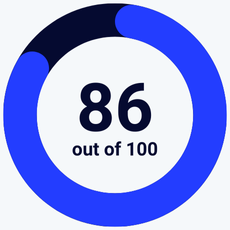
With the latest additions to Moosend, it’s a great choice for small businesses looking for an affordable email marketing software. The platform is intuitive, and the email editor is good to work with. Overall, Moosend is an excellent choice for businesses that want a solid, budget-friendly email marketing tool without the complexity of more advanced platforms.
Get started with Moosend for free here
Getting Started with Moosend
Signing up with Moosend takes around 2 minutes. You just need to fill in your email, a login domain, a password, and your name. After you sign up to Moosend, a wizard will walk you through getting started.
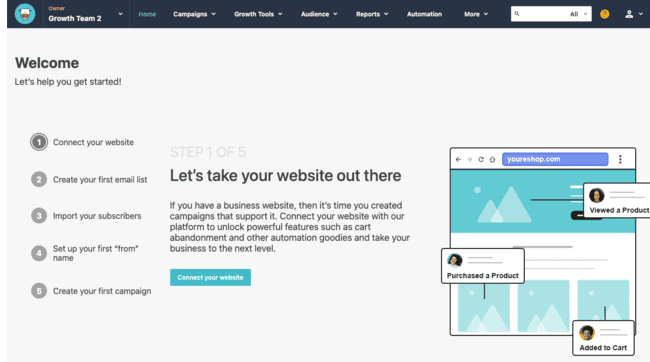
Creating your first email list is quick and painless. And if you have your email list ready, importing subscribers is the same. It took me about 5 minutes. The import detects email addresses and names automatically. And I smoothly chose and created new fields for the rest of my data.
Moosend has a Mailchimp Synchronizer integration that connects directly to Mailchimp or other platforms – and you can use it to migrate to Moosend.
Setting up the sender was as easy as possible. I just added my sending name and the email address. Then you are asked to verify that you own the domain. SPF and DKIM setup is advised, Moosend helps you out with an article covering how to do this most popular DNS providers.
You can choose to connect your website. Moosend can track the activity on your website after you connect your website. You can track a customer’s journey across your site, conversions, and sales. You can work out how much money you earn from your email marketing campaigns.
Other user reviews also say that completing the guided Moosend setup is quick and it’s easy to start sending campaigns.
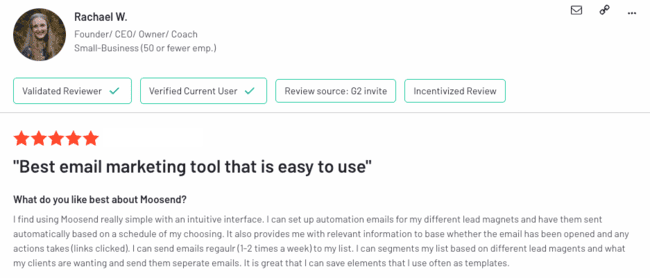
I also started and have to agree. They promised it was easy to do and it was. I had everything set up and could start creating emails and automations in half an hour.
Moosend Review: Email Marketing Platform
Moosend has lots of features that will make SMBs and newsletter senders love it. I tested all the features for sending campaigns, automating emails, creating landing pages and forms, managing contacts, and reporting on analytics.
At Email Vendor Selection, we have more than 11 years of experience working with and testing the most popular email marketing tools on the market. And of course, we use that to put Moosend to the test. This is the third time we’ve completely reviewed the software. The Moosend team continues to deliver new features that customers want. New features include:
- adding AI writing,
- 3 email editor improvements,
- deliverability features,
- preference center,
- and the mobile version of the editor.
Read our in-depth review below to find out how each part of Moosend performs.
Moosend Review: Sending Emails
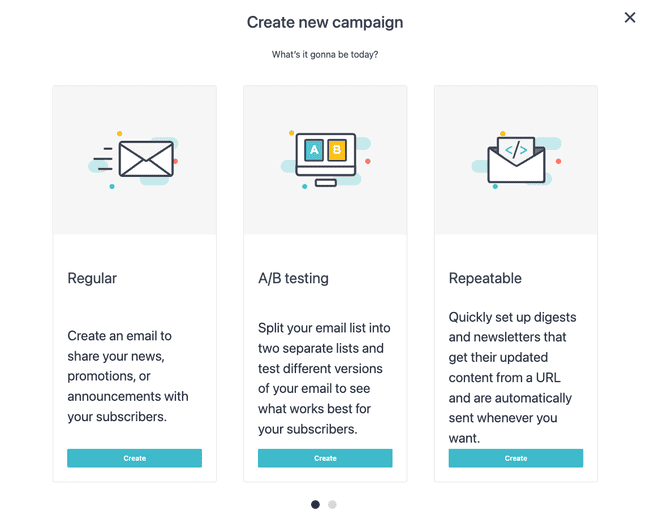
Moosend gives you lots of help starting from your first email campaign. There’s a Campaign Creation Wizard that takes you through the whole process.
There are 4 campaign options to choose from:
- Regular Campaign
- A/B Split Test Campaign
- Repeatable HTML Campaign
- RSS Campaign
Regular Campaign is the most used option and works for newsletters and all promotional emails.
Repeatable HTML and RSS Campaigns build emails from existing online content. RSS is a special type of feed common on blogs. If you connect this feed to a campaign, you can automatically load updates into a newsletter. What’s cool about the repeatable HTML option is that it lets you do the same thing for non-RSS pages.
Moosend lets you A/B test 3 different parts of an email marketing campaign:
- Sender name
- Subject line
- Email content
Email content is the big one here. You can create two different versions of the same campaign to compare. That is also the main sidenote: AB tests can be max 2 versions. The good part is that different designs, text, images, and calls to action can be tested.
Moosend also has a tool it calls a “real-time personalized subject line enhancer”. It recommends campaign subject lines to help with deliverability and open rates. The more campaigns you send, the better the suggestions get.
Email Templates in Moosend
Now it’s time to design your campaign. This starts with picking an email template.
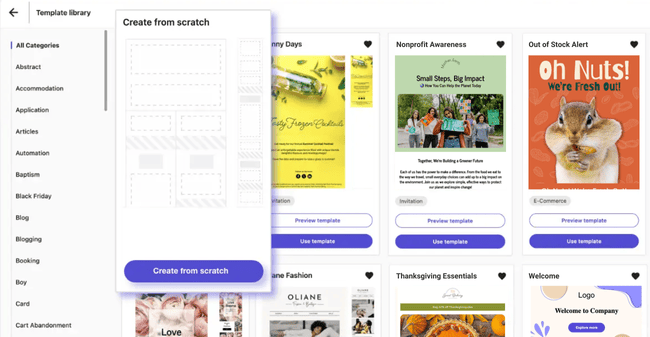
Moosend comes with over 115 pre-made email templates. Scroll around a bit to find the right template design for your campaigns. It’s handy that you can favorite the templates you like, and they show up in your library along with the templates you edited.
Moosend’s template designs are clean and professional. They use all the blocks and have a good ratio of images and text. They are practical and good for their intended use. Most templates are tested to be mobile-friendly and work in dark mode.
You can also import your own templates. There are 3 options:
- Import a template from an online source via a link
- Import a template by pasting in the HTML code
- Upload a file from your computer.
You can create your own templates from scratch using Moosend’s Email Editor.
Moosend Email Editor
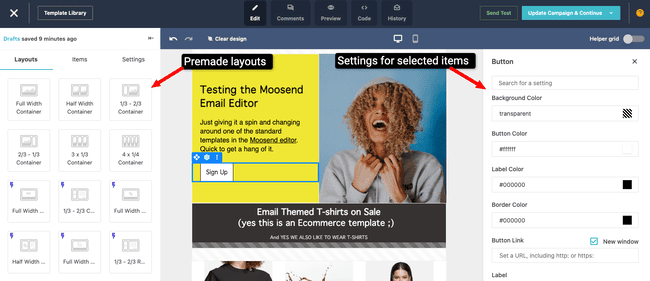
As with most email marketing software, Moosend has a drag-and-drop email editor. I like how the Moosend version is designed. It’s very visual, with colors and icons to help you navigate your way around. I found it very straightforward to use. The Moosend editor has different modes at the top-center of the screen. These modes include edit, preview, code, history, and comments.
Editing is organized into 3 tabs:
- Structure (to edit the layout)
- Items (the content building blocks of your email)
- Settings (adjust colors sizes, of each item)
You can add different layouts row by row. And up to four columns per row. Making the layout very flexible. And if you run an eCommerce store, there are pre-made layouts for products and more.
Another layout tool I like is the Helper Grid. The helper shows you where to drag elements into your design. It shows all the elements you can add to every row. I found this helped me to visualize my design as I was building it and sped things up a bit. Also, there is a zoom built in the editor to make sure that your designs are pixel-perfect.
There are 11 elements and content blocks that you can add to your layouts:
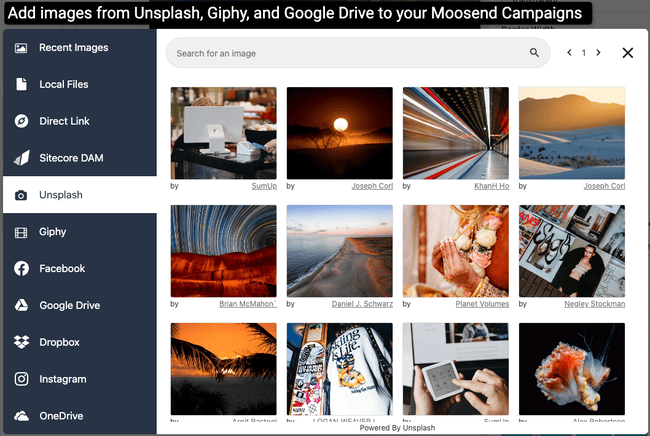
- Images: Moosend connects to the 1000s of free images from stock image library Unsplash. You can also upload images from Giphy, Facebook and Instagram. Or you directly connect your Google Drive, OneDrive or DropBox.
- Buttons: Format links into designed CTAs with icons.
- Articles: Pre-formatted blocks, like a text paired with an image.
TextBox: Use it for headings and text paragraphs as you need. - Social Share: Buttons for subscribers to share your email on social.
- Social Follow: Buttons for subscribers to follow your social accounts.
- Spacer: For adding padding between elements to tweak layouts.
- HTML: If you can code, this is where you can build your own elements.
- Countdown Timer: Great for sending things like time-limited special offers.
- Video: Paste the video URL, and you get a YouTube-like image with a direct play link.
- Product: If you run an eCommerce store, import products directly into your email.
There are lots of ways to customise how every element looks. These are listed under Settings in the editor’s main right-hand menu.
You can edit the text in this right-hand pane, too. I really liked the spell checker, autosave, history, and redo options here. The Moosend team did everything to make text editing stress-free with these safety nets.
Use Tags to personalize your email content.
In Moosend, you use “Personalization Tags” to include any type of merge field. They work the same way as in other email software. Insert the merge tag from the drop-down and Moosend will replace it with the right data for each subscriber during sending.
Use Dynamic Content to serve each subscriber their own perfect newsletter.
Moosend calls this function conditional visibility. Click on the cog on the right side of any block and scroll down. There, you’ll be able to select a custom field, a match type, and a value. The dynamic content will display based on what you set up there.
Pull Products into your email with Product blocks.
There are dynamic block presets for cart abandonment, product recommendations, and browse abandonment. Choose one, and it will be filled with dynamic content. This is indicated by the red frame around it on hover. Note that website tracking is required for these blocks to work.
Send dynamic images personalized to each subscriber.
Ok, this is a bit of a workaround, but it works. Set up a custom field with values for each subscriber. To display a unique image for every contact, paste the image link as the value for the custom field. Then, add an HTML block to your email and add the field to the right place as the image source. It’s not the easiest way, but I love it.
Improve your email copy with built-in AI
Moosend has an AI writer in the email, landing page, and form editor. It doesn’t actually write your emails, but it improves your writing, fixes spelling and grammar, shortens, lengthens, or summarizes text.
You can choose from a professional, enthusiastic, informative, approachable, and persuasive tone of voice. It’s useful to write summaries of articles you’d like to add to your campaigns.
Save and reuse blocks your like
If you create a layout or an item that you really like, you can clone and save it. This is great for making things like banners, headers, and footers. Once saved, you can reuse them in any future email marketing campaigns.
To make designs consistent, you can preset the width of your newsletters, set default fonts and colors, and switch the article’s default image position. There are some design tools to make your emails pop. Like positioning a newsletter’s background image and adding shadow to items.
If during any use, you want some explanation, just click on the yellow question mark in the top right corner of the editor to access the relevant help article for the page you are on.
Moosend Automation Features
Marketing automation is a real strength for Moosend. It hits a sweet spot between being simple and yet offering the most popular automations at the same time. That makes it attractive to complete beginners and experienced marketers.
Moosend’s marketing automation workflow editor is a joy to work with. It’s well-designed and clear. I liked working with this automation workflows editor because of how it looks as well as of how well it works.
Every workflow you build has a summary that explains what it will do. Under that, you get a list of task prompts. These walk you through creating your automation. It’s a great help if you are new to marketing automation.
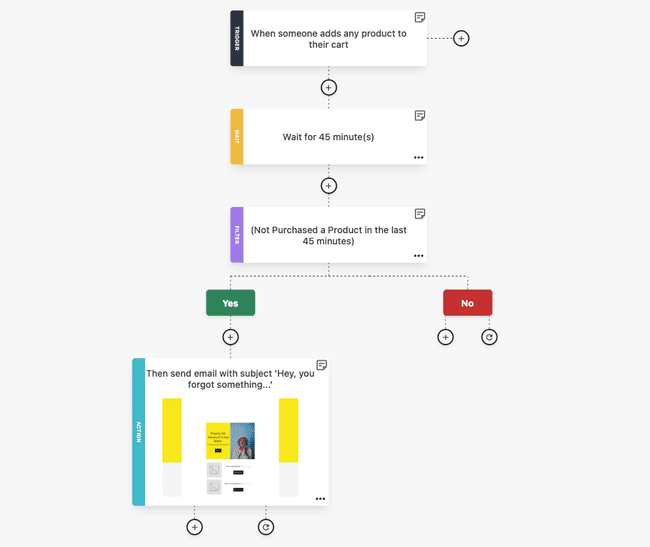
I love how all the different automation steps and actions are color-coded for easy recognition.
Black for trigger: The trigger starts your automation. For example, the trigger on a welcome campaign would be someone signing up for your newsletter.
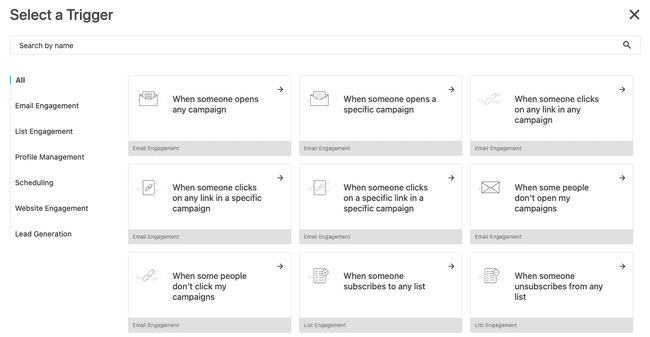
Moosend has 32 different automation triggers. That’s way more than most rival email marketing services I’ve tried. You can use multiple triggers to start the same workflow and use custom fields, events, and tags to trigger an automation. That makes the possibilities virtually endless.
Some triggers are based on web tracking. This links automations to subscriber behaviour on your site and is a very powerful marketing tool. For example, trigger targeted emails based on which web pages people visit.
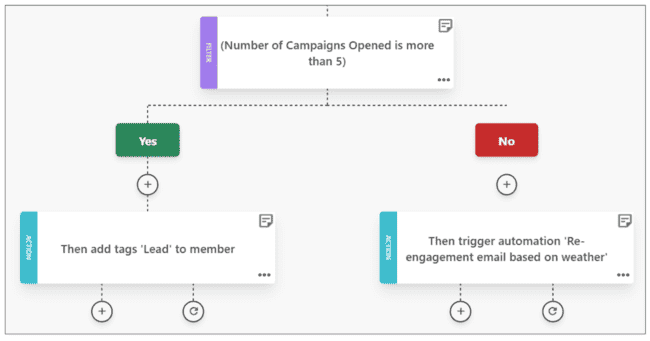
Purple for filter: Filters are a kind of condition, or what Moosend calls a Control Step. If the condition is met, then the workflow continues down one path (the Yes path). If not, it continues down another (the No path). Moosend has three types of filters:
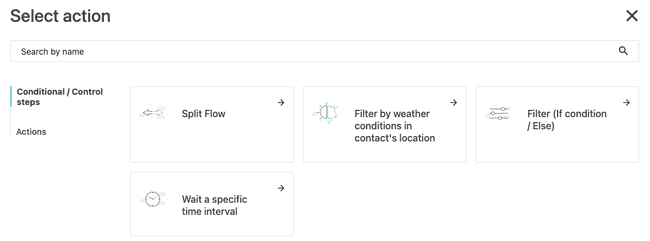
- Standard if/then conditions. Moosend conditions are more flexible than you’d expect. You can filter according to 30 different criteria. These range from subscriber details to behaviour to the type of device and browser they are using. What is more, you can set your own values on many of the conditions. And you can add multiple conditions to the same filter. Allowing for a lot of detailed flows.
- Filter by weather conditions in the contact’s location
- Split Flow. This randomly splits your subscribers by a ratio that you set. One group goes down one pathway, the other group takes another.
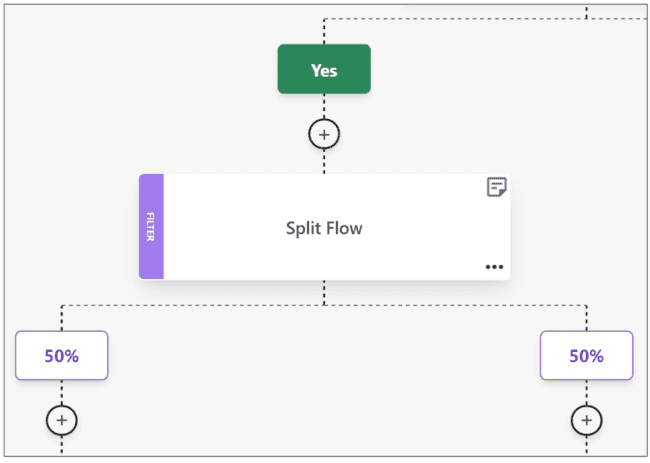
Split flow also works like an A/B Test. You can split the flow and see which email or path gives you better results. For example, delay the follow-up action by a different amount of time for two groups and see what works best.
Green for Yes, Red for No: These colors indicate the path taken if a condition is or is not met.
Yellow for wait: Wait is another type of control step. It sets a time delay before your chosen action is taken. You can wait for a specified period of time or set a specific time and date.
Blue for action: Actions are the responses to the triggers and conditions. There are 11 possible actions.
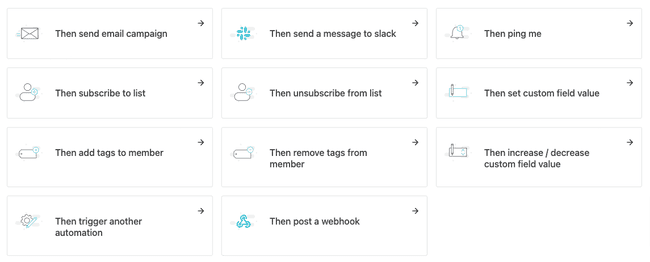
The actions cover sending out a communication, list management or changing contact details. You can also trigger another automation.
For example, you could set a condition for opening a specified number of campaigns. Anyone who goes down the ‘No’ path then receives a re-engagement campaign.
Save time with workflow automation templates
All automation workflows you build can be saved as templates to use again. Moosend calls workflow templates ‘recipes’. There are 18 ready-made recipes to start with.
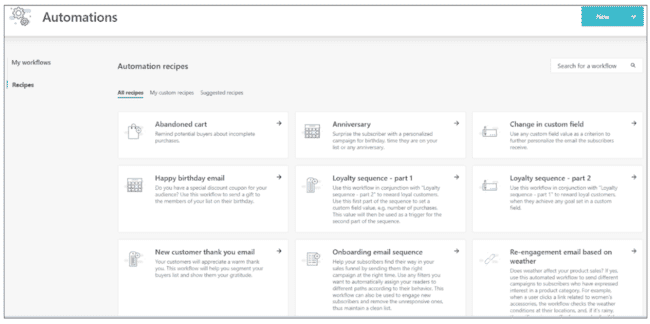
Each recipe is a marketing automation sequence designed for a specific purpose. Examples include:
- Survey emails
- Birthday or anniversary emails
- Abandoned shopping cart emails
- Welcome emails for new subscribers and customers
- E-commerce funnels, e.g. up-sell/cross-sell, or reminder emails
- Behaviour-led automations. Using web tracking and contact data as triggers.
- Customer re-engagement, e.g. if someone hasn’t opened a campaign for a while.
Moosend’s marketing automation recipes are easy enough for beginners. But they are also powerful enough for experienced marketers. Each recipe is fully customizable.
Some of the recipes are clever, especially for optimizing online sales. My favourite examples are the weather-based recipes. There is one for re-engagement, one for up-selling and cross-selling. Both use real-time location data to check the weather where a contact is. And then make product recommendations.
This helps you to avoid rookie mistakes like promoting swimwear if it’s raining. But if your data tells you weather affects sales in any way at all, you can use that to customize campaigns.
Sign up to Moosend for free here
Moosend Landing Pages & Forms
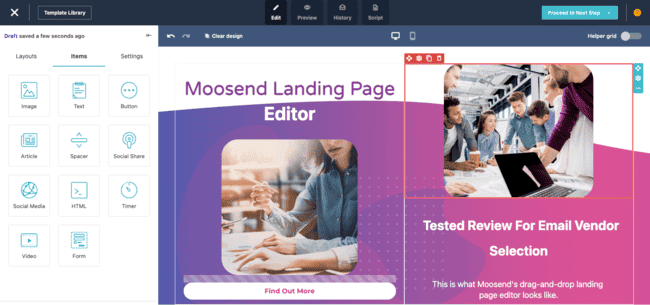
Creating a landing page in Moosend is pretty much identical to creating an email. The template designs match the email designs, the landing page editor looks and works the same. I like that. In a lot of email marketing services, the email editors and landing page editors are totally different tools.
Moosend’s way is great for consistency. Once you’ve worked out how to design emails, you can build a landing page, too.
There are 38 landing page templates, or you can create your own landing page from scratch. As will the email editor, I enjoyed how clear and visual everything in the landing page builder is. And I love the flexible layouts.
I also like that you can resize images in place once they’ve been added. With a lot of email marketing software, you have to set the size of the image before you upload it. This can make it difficult to get everything to align on your page.
Just a couple of little niggles I spotted with the landing page editor. I noticed some of the text wrapping is off. If you hit the end of a line mid-word, it will cut the word and carry on the next line. And once you’ve set a structure and added content, I couldn’t work out a way of changing the layout. So if I then wanted to change from one column into two, I’d have to start again with a new row.
But overall, these are minor things for what is a pretty good landing page builder.
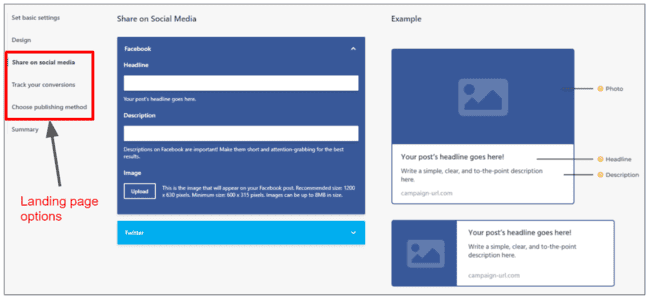
Here are some things you can do with your landing page once it’s built:
- Share it on Facebook and Twitter. This is useful if you’ve got a form on your page and want to get more people to sign up from social.
- Set tracking. You can track link clicks of how many people fill in forms. You can connect with Google Analytics and Facebook Pixel for more advanced tracking.
- Choose a publishing method. You can publish your page on the Moosend domain, or host it directly on your own domain or WordPress site.
Sign-up Forms in Moosend
You can add in-line forms to any page, or create standalone subscription forms to add to other pages. This gives you more form types:
- In-line forms
- Pop-up forms
- Fullscreen forms. These take up a whole page.
- Floating bar forms. These stick to the top or bottom of your page as visitors scroll.
- Floating box forms. A box that stays visible as visitors scroll.
- Promotional Popups. A popup with a button linking to a landing or offer page.
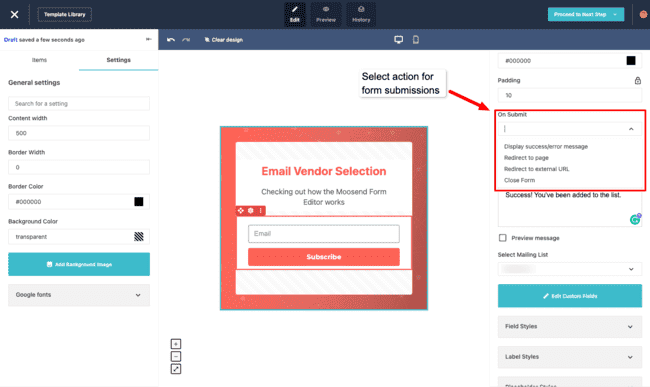
As with emails and landing pages, Moosend uses the same editor to create forms. And the templates all have a similar look and feel to the email and landing page templates. I love the consistency. By the time it came to playing with the signup form builder, I felt halfway to being a Moosend expert. There are 11 form templates, These have the same look but different layout based on the form type. Popups all have their own design, there are 18 promotional popup templates.
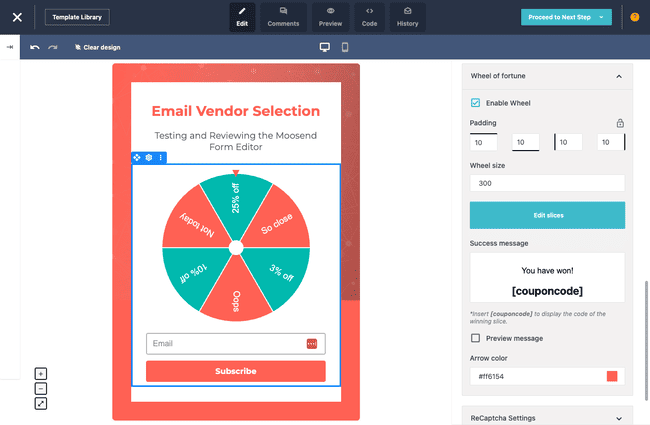
A nice touch in the form and landing page editor is the wheel of fortune. Add a wheel of fortune (WOF) to spice up your forms and increase conversions. You can edit the wheel size and add any offer you want. Customize it with labels, colors, and coupon codes. Select win or lose slices and define the probability for each slice.
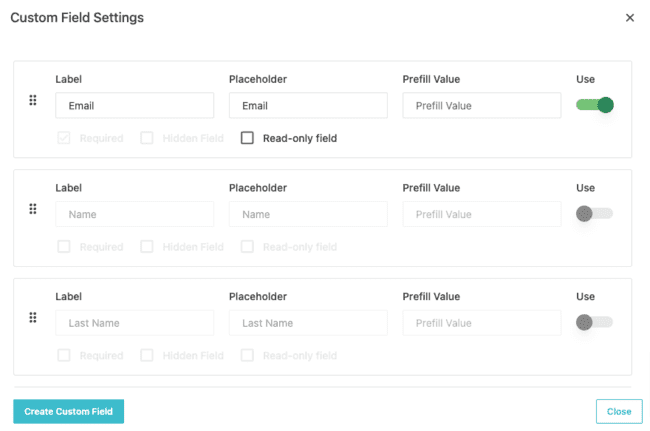
Every signup form template starts with a default field for an email address. To add more data fields, you have to click Edit Custom Fields. This gives you the option to collect whatever information you like, including creating your own data fields.
Code mode is available in the landing page and form builders, too. Get a read-only view of the HTML of your forms or pages. Copy the HTML code, download them in JSON, or upload JSON templates. Then, you can paste the HTML code into your CMS to show Moosend forms on your site.
Moosend Email List Management
Moosend lets you create as many lists as you want.
Something I alwaays look for in list management options is data privacy. You can’t be too careful these days about how you collect and use people’s personal information.
Moosend lets you choose between single, confirmed or double opt-in. A double opt-in means sending a confirmation email to people who sign up. It’s a way of double checking that they want to receive emails from you.

Another feature I was pleased to see is a suppression list. In the suppression list is a list of all contacts who should never receive your emails again. This might be because of a hard bounce (your emails aren’t delivered) or because someone complains about your emails.
A suppression list makes it easy to make sure no one receives your emails if they are not supposed to. With a suppression list, all you have to do is add a contact to it and that’s it. All future campaigns will be blocked.
The preference center is another way you can stay compliant and reduce unsubscribes. You can add an update preferences link to your email footer next to the unsubscribe link. This will open a page where contacts can customize what they want to get and how often.
Email segmentation
The best thing about Moosend’s list management features is its segmentation.
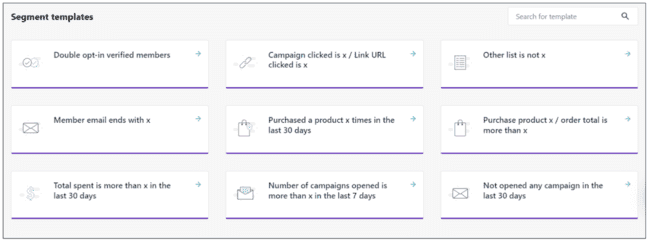
There are nine pre-made segment templates to get you started. It’s easy to create your own segments based on your data or custom fields you create and using tags. As custom fields and tags can be anything you want, there are almost no limits to segmentation segment by.
For even more flexibility, you can filter by more than one criterion at once.
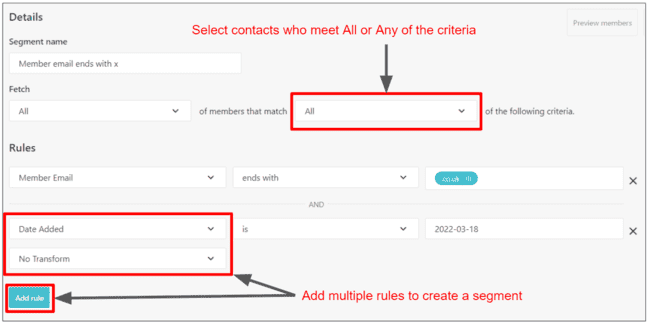
The pre-set filters range from basic contact information like name, location, date added etc. At the more advanced end of the scale, you can use web tracking to filter by contact actions.
Moosend’s Audience Discovery tracks which products your customers are looking at, adding to their cart, or buying. Then, adds tags to contacts so you can quickly create targeted campaigns for the right interest segment. The tags show how much interest a contact has in a product and their chances of buying.
You set up automations based on the Audience Discovery segments and tweak them to fit your brand.
For me, this takes Moosend’s segmentation to another level. This is one of the standout examples of why Moosend is good for small businesses and small eCommerce retail.
You can filter contacts by specific links they have clicked, or the number of links they have clicked. If you run an online shop, you can also segment by which products people have viewed, or even by average customer spend.
Get started with Moosend for free here
Reporting and Analytics
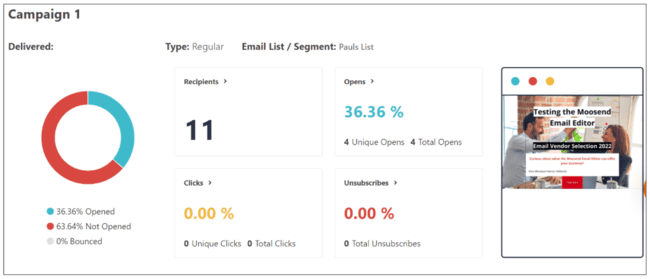
You want to know the performance of your email campaigns in detail. Moosend offers all the stats and an analysis of standalone and repeat campaigns. Like opens and clicks.
- Performance overview: The basis of email marketing reporting. Includes open rates, click rates, and unsubscribes.
- Track recipient activity: This tells you the detailed stats per individual subscriber. So which contacts opened it, who clicked a link, who unsubscribed etc.
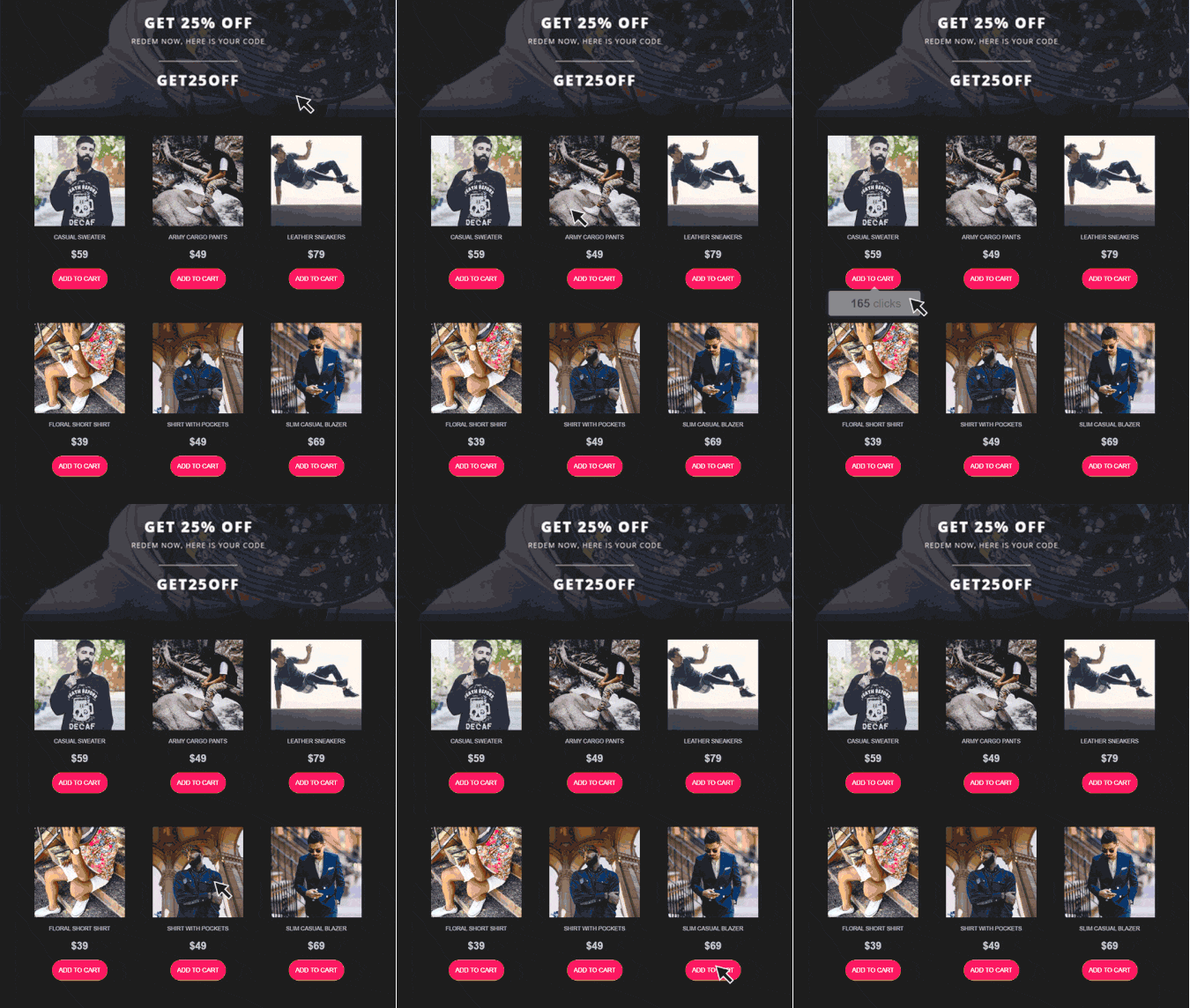
- Click map: this shows which links subscribers clicked on in your emails and how many times.
- Track email clients & devices: A breakdown of the devices, email clients, browsers and operating systems your subscribers use. This is useful for seeing the most used email clients like gmail or outlook.
- Track activity by location: I love the interactive map! All you have to do is hover over a country and it shows key campaign performance stats for that location.
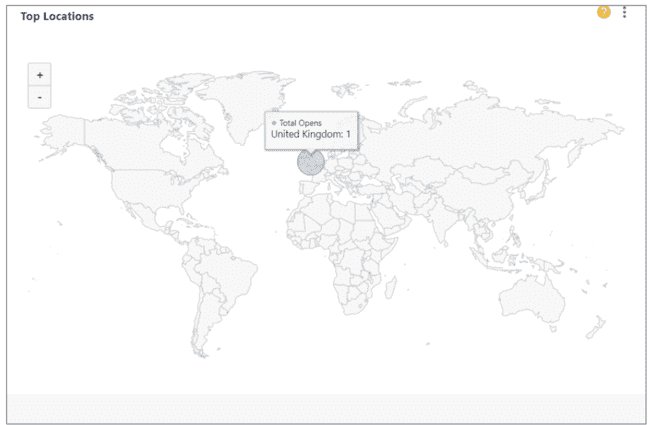
Moosend gives open, click and unsubscribe rates for your automation campaigns, too. The platform also shows the number of subscribers in an automation and the campaign stats.
For subscription forms, you get stats on how many people have seen it and the conversion rate. Reporting for landing pages tell you the number of visitors and number of views as well as conversions. The conversion rate is how many visitors have clicked a link or filled in a form.
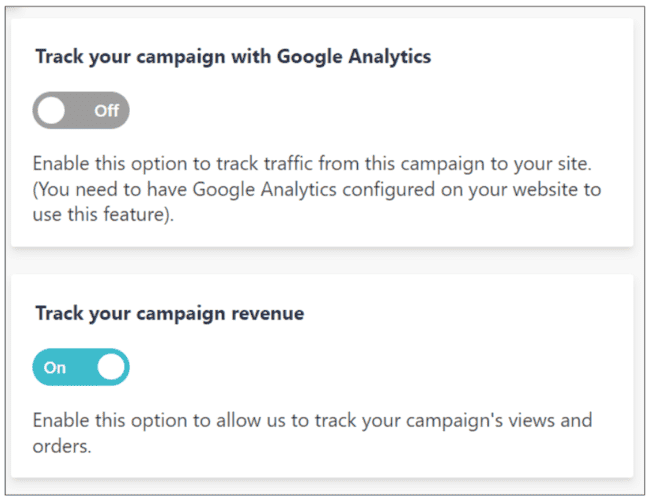
Moosend analytics get the extra insights once you add website tracking. You can link your Google Analytics account to Moosend. This will let you analyse how much site traffic you are getting from your campaigns. Or you can place Moosend’s own tracking code on your site. Now, you can see detailed web reporting on subscriber behaviour. For example, it can tell you what people have ordered, how much they have spent, whether they have abandoned their cart, etc.
Deliverability
Moosend’s deliverability is up there with the top providers. Our research shows that customers mention this as a reason for choosing Moosend.
Moosend is certified by the CSA (Certified Sender Alliance). So you will be enjoying better deliverability in major inboxes, thanks to the CSA whitelist. Also, this is a guarantee that they will comply with best practices and check all the boxes on deliverability.
They offer you all the tools to prevent any issues with your email deliverability.
Before sending a campaign, Moosend will flag any problems with the HTML, sender email or name. It also checks if you have SPF and DKIM set up. This is very useful for beginners to make sure their first campaigns land in inboxes and to keep an eye on every send.
If you’d like to dig deeper, Moosend’s Spam Test checks if your email will pass spam filters. And it gives you detailed scores of what you need to work on to improve your inbox placement.
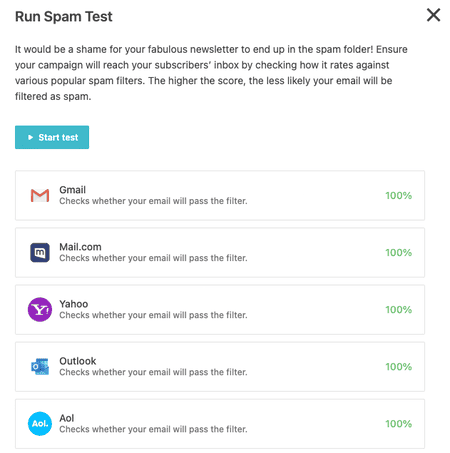
It includes popular email services, like: Gmail, Yahoo, Outlook, Aol, Mail.com, Hotmail, and Office 365. The test gives you a percentage score. 100% means you’ve done everything right to land in the inbox, and 0% means you’ll most likely end up in junk. The percentage scores let you quickly check if everything’s okay.
The real value of this tool is the detailed breakdown of a Spam Assasin score. This will show you, if you have any issues with SPF, DKIM, blacklists, and the HTML formatting.
On email list import, Moosend checks and removes duplicate and unsubscribed contacts. This keeps your email list clean and reduces your costs as an extra benefit. Moosend also has a warm-up plan for new customers with a recommended daily sending volume.
If any sender’s bounce or complaint rate gets too high, Moosend will contact them directly. This is to protect everyone from damaging your sender reputation by sending more campaigns. Moosend makes cleaning your list easy with integrations with the most popular email verification tools.
Integrations
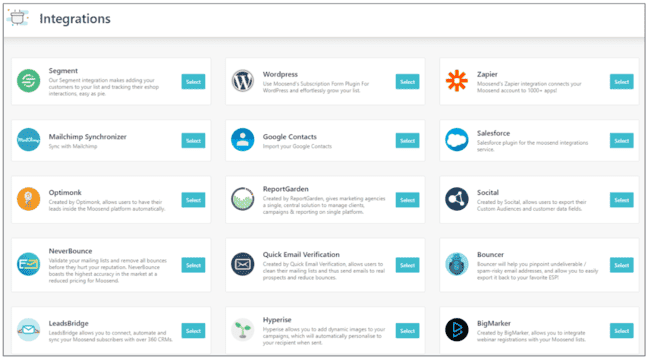
Moosend offers 42 direct third-party integrations. Moosend’s native integrations cover CRM, CMSes list validation, and lead generation platforms.
It also connects to eCommerce services like Woocommerce and Magento. When you set up these integrations, you can pull product listings into your emails or set up upsell automations.
Run your store on Shopify or another eCommerce platform not listed? You can connect through Zapier. Zapier is an integration platform that syncs to thousands of web applications. So if you do have a Shopify store, you can connect through Zapier. The same applies to any software service you use.
Get started with Moosend for free here
Moosend Customer Support
Moosend has customer support through a live chat help desk and a self-service knowledge base.
There’s a live chat widget on every page. So if you ever run into a problem, you can click and ask for help instantly. I tried out the live chat feature a couple of times. It is impressive how quick the response was. I got direct answers to my question from the customer support. Plus, they pointed me to articles on the knowledge base if I wanted to find out more.
Moosend’s knowledge base is helpfully categorized in 13 categories. The categories relate to key areas of the service: Audience, Campaigns, Growth Tools, Automation, and more. About half the categories have more than 100 articles listed. There are also some video tutorials to help you get up to speed using the platform.
Moosend Pricing and Plans
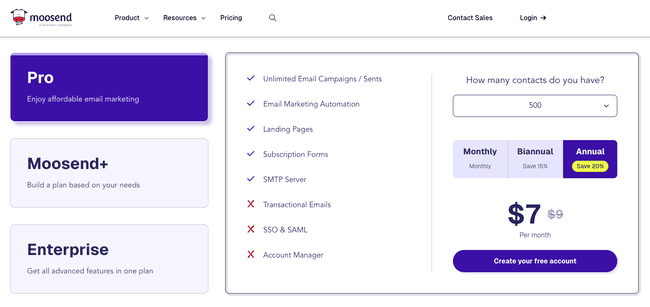
For the quality of its marketing tools, Moosend is a bargain. Pricing starts at an incredibly cheap $7 a month for 500 contacts if you pay annually. That’s about the lowest price for any email marketing tool in this category. Check out this full Moosend pricing guide to compare prices with other email marketing tools.
I’m a fan of Moosend’s simple pricing structure. There’s one paid plan, the Pro tier. For one price, you get access to all the features. The price is based on the number of contacts you have.
| Free | – 30 day trial with all Pro features |
| $7 | – 500 contacts – Unlimited email sends with all Pro features |
| $13 | – 1000 contacts – Unlimited email sends with all Pro features |
| $38 | – 5,000 contacts – Unlimited email sends with all Pro features |
| $70 | – 10,000 contacts – Unlimited email sends with all Pro features |
| $128 | – 25,000 contacts – Unlimited email sends with all Pro features |
| $252 | – 50,000 contacts – Unlimited email sends with all Pro features |
Custom-priced Moosend+ and Enterprise plans are available for bigger organisations that want an account manager and other benefits. You can try out the platform for 30 days with no limitations and then get a 30% discount yearly.
Exclusive discount
Moosend has generously offered an extra 10% off for EVS readers. That’s on top of the 20% discount when paying per year. Sign up here to get the discount.
Moosend Review Conclusion
So, do we recommend Moosend? Yes.
Like you’ll have noticed throughout our Moosend review, we are positive about Moosend. It’s a solid choice for anyone considering an affordable email marketing platform. Or is looking for an alternative to the (very expensive) Mailchimp.
The platform is intuitive and beginner-friendly, making it accessible to everyone from beginners to experts in email marketing. And the email editor is good to work with.
In testing and talking with their customers, we found that customer service is friendly and eager to help out. If you have any questions while making your campaigns, they are there. We got some real practical advice and noticed that they are quite quick to answer.
Unlike some competitors, Moosend includes all Pro features in the paid plan, so you won’t have to pay extra to unlock extra functionalities.
That said, there are some drawbacks. Moosend doesn’t offer a free plan, only a 30-day free trial, after which you’ll need a paid subscription. Its automation builder does the trick, allowing you to set up the most popular workflows. But they aren’t as elaborate as more complex, (and expensive) platforms like ActiveCampaign.
While it does have some CRM-like features, like storing your email contacts, it isn’t a dedicated CRM platform. If you want a sales CRM included, you may look at a platform like Brevo or Engagebay.
Overall, Moosend is an excellent choice for businesses that want a feature-rich, budget-friendly email marketing tool without the complexity of more advanced platforms.
But don’t just take our word for it. Try Moosend free for 30 days and get an extra 10% off in addition to the 20% discount when paying per year.
I hope our Moosend review has been helpful! Let me know if you have any questions.
Frequently Asked Questions (FAQ)
Moosend Alternatives
Moosend vs Mailchimp
Mailchimp is well-known as a popular email marketing tool. Mailchimp has all the basic features you’ll find on small market email software and translation into 50+ languages. It also has a free forever plan and mobile apps for both Android and iOS.
However, once you start paying, Moosend works out much cheaper than Mailchimp. Its automation and segmentation options are more flexible and easy to use. And Moosend lets you send unlimited emails. Mailchimp caps emails on all plans.
Compare more Mailchimp alternatives or read our full Mailchimp review
Moosend vs. Brevo
One of Brevo’s main USPs is a great free plan that lets you send 300 free emails per day. Some people argue that this is what makes Brevo one of the best value email marketing services out there.
That’s maybe true if you want to grow huge subscriber lists at low cost. But Moosend starts off cheaper than Brevo’s cheapest paid plan. And it’s much better money for features like A/B testing. In Brevo, A/B testing is only available in the Business plan, but it does have a CRM, too.
Moosend vs. Constant Contact
At first glance it may seem like there is not much to choose between Moosend and Constant Contact on an entry-level price. They’re both super affordable and share a reputation for being very easy to use. That makes them ideal of anyone getting started with email marketing. Check out our full Constant Contact review to find out more about its features, pros, cons, and pricing.
Constant Contact has more email templates. But Moosend wins hands down on marketing automation and analytics. Not only are its tools better, you don’t have to pay more to get the most advanced features.
Compare more Constant Contact alternatives
Moosend vs. Mailerlite
There are a lot of similarities between Moosend and Mailerlite. They’re both positioned as affordable, easy-to-use email marketing solutions for small businesses. They both offer unlimited emails on all paid plans. They both have solid email and landing page editors.
Price-wise, they are also very similar. Mailerlite pricing is just about better value, starting at $7 a month for 1,000 contacts if you pay annually. That’s the same price as Moosend but for 500 contacts. Mailerlite also has a free forever plan as well as a 14-day free trial of premium features.
However, Moosend offers more advanced features. Its strengths are its marketing automation, segmentation, and web-tracking tools. These are fully available on all plans. By comparison, Mailerlite keeps it more basic.