
Teachable Review 2026: The Easiest Platform to Sell Courses?
 Paul Newham
Teachable is a platform for building and selling online courses. In a rapidly growing category, it’s one of the most popular platforms. With 150,000 active customers, more than 100 million people across 180 countries have taken Teachable courses.
So if you are considering Teachable, what are the strengths of the platform that gets so many to use it? And what makes it stand out from other commercial e-learning platforms?
We’ve already reviewed over 15 online course platforms. And we gave Teachable a hands-on test to see where it stands out. I signed up and tried every feature of Teachable myself. Here I’m sharing my honest Teachable review. So you can decide if it’s the right fit for you.
Teachable Review Overview
- Teachable is a full platform for building and selling courses. It is popular among creators, coaches, and education entrepreneurs.
- Speed and simplicity are Teachable’s biggest strengths. You won’t find many platforms that can turn ideas into sellable learning products faster.
- AI course generation is very helpful. Teachable’s AI generates full curriculum outlines from your text prompts. And automatically builds your course website, sales landing page, and checkout pages.
- Course and web editors are very simple to use. And there is some customizing of the look and feel of your Teachable courses and sites.
- Teachable has a few nifty marketing features, but it’s not a full marketing platform. You can send emails to guide all transactions and sales. With a focus on referrals, discount coupons, and upsells.
- The Starter and Builder plans are very affordable at just $29 and $69 per month for 5 courses.
Pressed for time? Here’s a summary of the main points from my Teachable review.
👉 If speed and simplicity matter most and you want a course platform to build courses, pages, and payments, check out Teachable.
Create your course with Teachable for free
Teachable Core Features
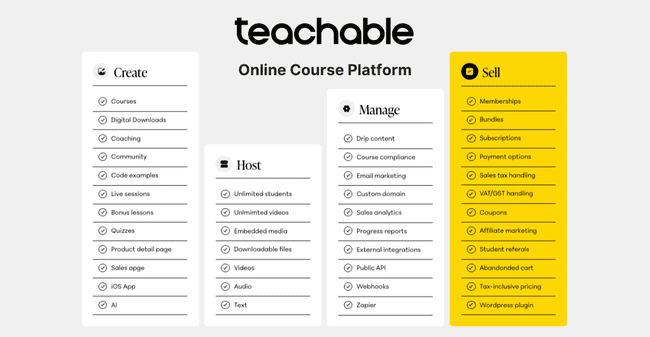
Here’s a summary of the Teachable platform’s main features:
- Course Builder: Teachable’s AI tools turn course ideas from a prompt into curriculum outlines at the press of a button. Then it’s just adding learning content. Teachable supports text documents, video, and audio files. Plus live sessions via Zoom.
- Page Builder: Teachable’s AI tools generate web pages for every course. You can customize them with a simple block editor. The options are basic. But speed and ease of creation are major strengths.
- Course Delivery: By default, all products are available on demand once a learner buys them. You can set simple drip schedules to release lessons and materials at fixed times. And schedule live sessions via Zoom. Compliance rules let you set performance conditions for students to progress through courses.
- Promotions & Marketing: Teachable includes tools for offering discount coupons and incentivizing referrals. It has its own email tool, but this is mainly useful for transactional emails. You have to know how to code HTML to edit templates. And there are no tools for creating and automating campaigns.
- Student Engagement & Interactivity: Students can track their progress with auto-marked quizzes. You can set up community forums for students to talk to each other and you. And allow comments on all lessons.
- Monetization & Payments: Another big strength. Teachable automatically sets up sales and checkout pages for every product. It has its own payment platform that accepts various card, mobile, and BNPL transactions. You can set up pricing with one-time purchases, subscriptions, and payment plans.
- Reporting & Analytics: Teachable keeps detailed logs of all transactions. You can filter lists, but you won’t find much trend analysis or performance metrics.
- Integrations & API: Most of the 23 integrations are email marketing and analytics platforms. You need Zoom to run live tutorials and virtual coaching sessions. Higher plans include Zapier and API access. But all tiers cap the number of integrations you can have.
Get started with Teachable for free
Teachable Pros and Cons
Teachable Pros
- Extremely easy to launch and use. Teachable removes all technical barriers to building and selling courses. You don’t need any prior experience with learning software. And it cuts the time it takes to create online courses to a bare minimum.
- All payments and sales are taken care of. Teachable comes with a full set of ecommerce payment tools. It automatically builds sales pages and checkout for every product you make. The built-in payment gateway accepts card, mobile, and BNPL payments. And it handles taxes in close to 200 countries.
- AI-powered automation. AI is key to Teachable’s speed and simplicity. The AI turns your course ideas into a workable curriculum from a prompt. And generates pages for your school site automatically.
Teachable Cons
- The Starter plan is only for one course. Which is good to get started, but we’d love to see unlimited courses on the starter plan. To sell more courses, you’ll have to get the Builder (5 courses) or Growth (25 courses) plans.
- The simple site builder isn’t for elaborate designs. Teachable’s course and site builder are built for simplicity. This means it intentionally does most of the creative and technical work for you. This comes with a trade-off. You won’t be able to build a very complex or elaborate design.
- Not a full email marketing platform. Teachable’s email tools are for transactional emails, not email marketing. You can set up abandoned cart reminders and upsell emails. Unlike a full email marketing platform, the visual email builder isn’t there. And segmentation features are more basic. Teachable has integrations with email marketing platforms, like MailerLite, ActiveCampaign, AWeber, Kit, and Mailchimp, for course creators who need more advanced features.
Launch your course with Teachable for free
Is Teachable for you?
Recommended If:
- You’re a creator or coach starting in online education. There’s no doubt that Teachable’s biggest attraction is simplicity. That makes it ideal for new starters. It does all the technical heavy lifting for you. And it’s great value for creators starting to sell products.
- You want to sell in multiple countries. Teachable’s payment gateway handles international sales and sales tax across all territories. It has single-click web page translation in 11 different languages and video transcriptions in 70.
- You want others to promote your course. Built-in affiliate tracking makes it easy to let others promote your course without needing third-party tools.
- You just need an online course platform. Not a full marketing suite, CRM, or funnel builder, just a reliable platform to create, sell, and deliver courses.
- You want a clear and distraction-free learning experience. Teachable’s course player looks professional and works great on mobile. Students get a clean interface and easy navigation that rivals more complex platforms.
Not recommended If:
- You want to sell unlimited courses. Teachable becomes pricey if you want to sell more than 5 courses. So if you have plans to sell more than 25 products, low-priced rivals like FreshLearn become more affordable.
- You want to create elaborate designs and pages. Teachable’s biggest strength might be a drawback to some. You won’t find an easier way to build courses and course websites. You can customize, but you won’t be able to create very elaborate designs and pages using the built-in page builder for your Teachable school.
- You want to import SCORM products. Teachable doesn’t use the SCORM (Sharable Content Object Reference Model) format. That means if you want to migrate or are working on multiple platforms, you can’t take advantage of SCROM to import courses, lessons, or learning materials from other LMSs.
Get started with Teachable for free
Teachable Review Rating Details
Ease of Use | Simplicity is Teachable’s superpower. A lot goes into creating and selling courses. Teachable uses AI and automation to do a lot of the heavy lifting for you. Across the platform, the UI is user-friendly and easy to learn. |
Course Content Creation | Turning ideas into working courses couldn’t be easier. Teachable’s course outline AI generates a full curriculum from a simple text prompt. It will create text content and quizzes for you, too. And you can upload video and audio files and add live Zoom sessions. You can choose from 2 design templates for how your courses will look to students. I’d like to see more. |
Course Delivery & Formats | All courses are fully available on demand after purchase by default. You can vary this by setting drip schedules to release lessons at certain times. Or set compliance rules for what learners must complete before they progress. We’d like to see features for cohort-based and blended learning formats. |
Student Engagement & Interactivity | Teachable’s Community functions are the student message boards. You can enable comment threads on all lesson pages. But it lacks the direct messaging and social features similar platforms have. |
Marketing Tools (Landing Pages & Email) | Teachable automatically builds sales pages for every product. But it doesn’t have many built-in marketing features for promoting these pages. Email is mostly transactional rather than promotional. You can set up abandoned cart reminders. But there’s no visual email builder. |
Monetization & Payments | Teachable has all the ecommerce features you need to start selling courses. It auto-builds sale and checkout pages for every product. And has its own native payment gateway. This accepts multiple payment methods. And calculates tax on global payments. |
| Reporting & Analytics | Every account includes full transaction logs with plenty of filtering. But performance analytics are basic. You get trend over time graphs on your account dashboard. But I’d love to see more metrics. |
| Mobile Accessibility & Responsive Design | All courses and sales pages are automatically mobile responsive. I’d like to see a mobile preview. Teachable also has a student app for iOS and Android. |
Custom Branding & White-Labeling | Building courses and pages for you is part of Teachable’s ultra user-friendly deal. You can customize to a certain extent. Growth and Advanced plans unlock white label websites. |
| Customer Service | The main source of support is a detailed, well-written knowledge base. And an AI chatbot trained on the knowledge base. Raising a support ticket could be easier. You either have to have an issue escalated by the AI bot. Or email Teachable’s support team. |
| AI Tools & Automation | Teachable uses AI well to automate large chunks of course and site building. It generates course outlines, text content, and quizzes from simple prompts. And automatically creates web pages for your school and products. |
| Integrations & API | Teachable has 23 integrations. They include Zoom for delivering live sessions. WordPress if you want more control over building your website. And email marketing and analytics tools. Teachable limits integrations on lower plans. Starter only includes 1, Builder has 3, and the Growth and Advanced plans include 5. Zapier and access to the API are available on the Growth plan and above. |
| User Permissions | Teachable has 5 pre-defined user roles. Primary owner. Owner. Authors. Affiliates. Students. Students and affiliates are customers. Owners have administration rights over customers and authors. Primary owners have full account rights, including over payments. They can also create custom roles. |
| Security & Legal Compliance (GDPR, Accessibility) | Teachable has SOC 2 Type II Accreditation for data protection. All school owners enter into a Data Processing Agreement (DPA) when they sign up. This is in line with GDPR compliance. |
| Interface Languages | Teachable lets you translate student-facing pages into 11 languages automatically. And offers video transcriptions in 70 languages. But the Teachable interface is only available in English. |
| Customer Satisfaction | Teachable gets an average user rating of 3.9/5 on G2. And 4.2 on Capterra. The biggest pros cited by users centre around ease of use. Some customers wish the pricing was lower and there were more design features. |
Overall Score
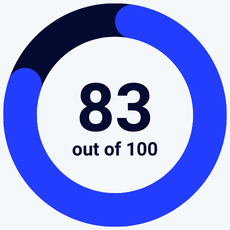
Teachable has some remarkable strengths. It’s easy and fast to master. AI and automation support course creation. Sales and payment tools are taken care of. Support for global selling is excellent. It could offer more marketing and analytics features. But if you need an easy-to-use course platform, Teachable is an excellent choice.
Create your course with Teachable for free
Getting Started with Teachable
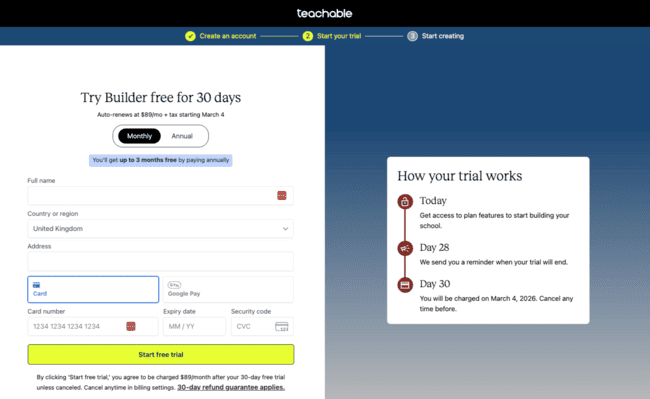
Teachable has a reputation for being very user-friendly. I’d add beginner-friendly to that. Setting up a Teachable account takes no time. You just need an email address you can verify. Then you can dive straight into building education products in 3 minutes.
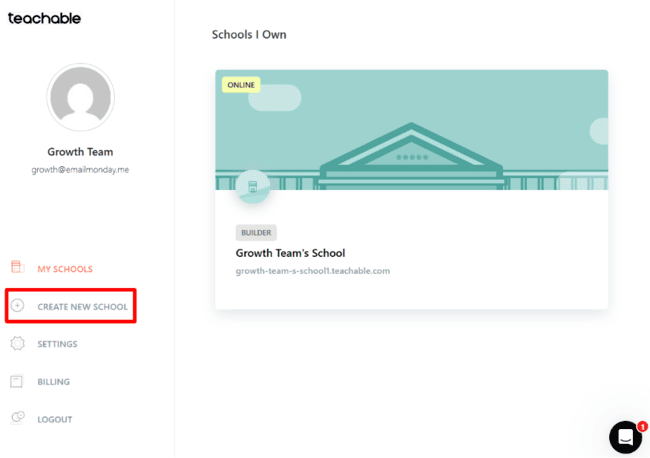
Once you have an account, it’s on to launch a school. This is just a matter of giving a name and filling in a few brief details. Your school is where you build, store, and sell your courses. And also where your customers find products, purchase, enroll, and manage their learning.
My only grumble with Teachable’s setup is that you have to give your payment details for the free trial. If you sign up with our link, you get 30 days instead of 7 to test the platform, and you can always cancel the trial. But I always prefer card-free.
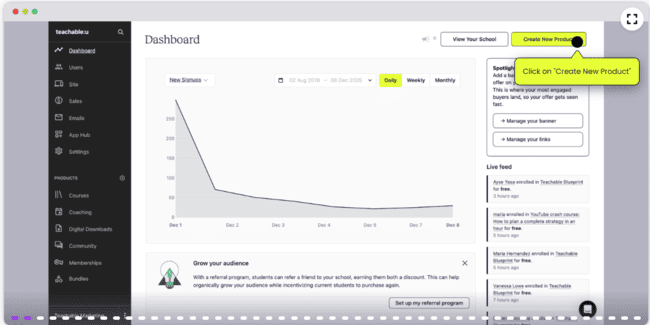
In Teachable to ‘Get Started’, you can have a look at the interactive product demo. This gives a general overview of the features.
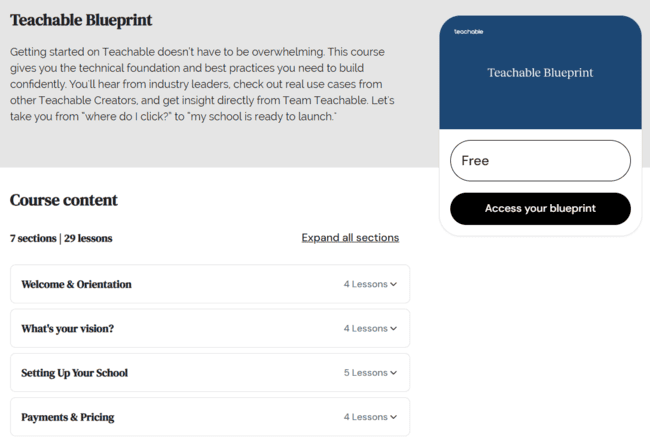
A better starting point is Teachable’s Blueprint course. This is free when you sign up. Over 27 lessons, it covers every corner of the platform. A little like this review, but in even more detail. Best of all, you can practice with the different tools as you go through the course. So you can use it as a guide to setting up your school. Building your first product and sales sites. Delivering lessons in various ways and more.
Create your course with Teachable for free
Teachable Review: Online Course Platform Walkthrough
Create Your Course with Teachable
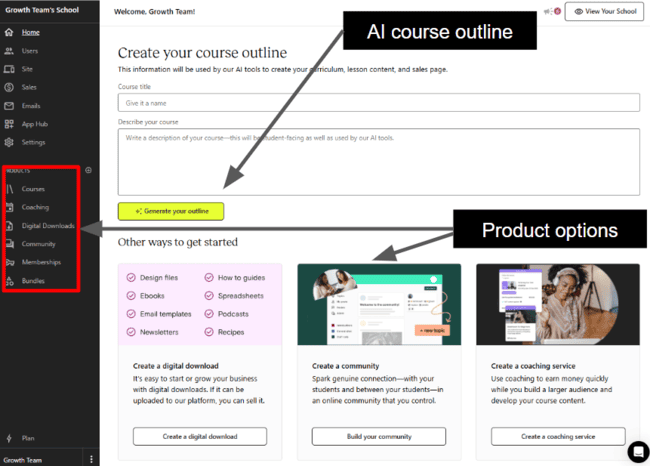
When you first open a new school, Teachable takes you straight into course building. The first thing you see is an AI course outline builder. So you go from finalizing your account to course creation in a handful of clicks. You don’t get a faster start than that!
With the AI outline builder, all you have to do is describe the course you want to create. Teachable’s AI then generates a suggested curriculum for you. It’s a great starting point. You don’t have to worry about any special prompting. Teachable asks for the course description you want your students to see. And the AI works from that.
The welcome home page also includes a list of ‘other ways to get started’. This lists some other products you can make. The full list is in the left-hand menu. They are:
- Digital downloads: Products customers can download as a digital file. You can make ebooks, newsletters, how-to guides, and podcasts in Teachable. And you can upload most file types.
- Coaching: Delivered through a mix of live online sessions, downloadable content, and assignments.
- Community: A social platform for your learners. You can set up communities for all your enrolled students. Or monetize them as VIP extras.
- Memberships: Sell memberships to your school as an all-in-one course access.
- Bundles: Package multiple products to sell together.
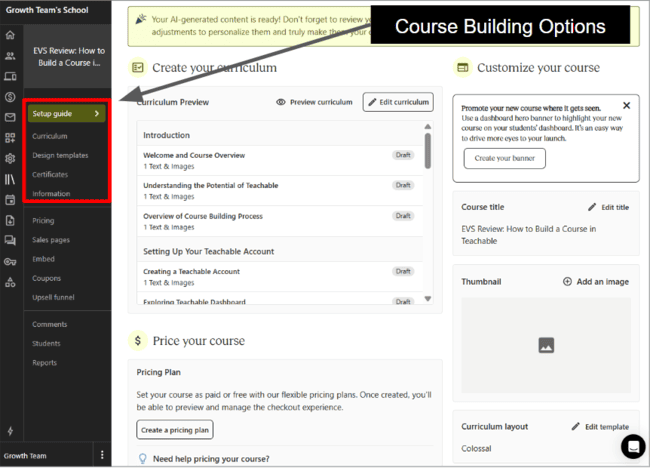
After generating your course outline, you see a Setup guide. This is like a home page for course building. It lists your suggested curriculum and includes customization for your course pages, including templates. And pricing plan and sales page tools. I like the way all course-related features are in one place.
The main task is to fill in your course content. The AI generated outline is just a skeleton. Clicking the Edit curriculum button, takes you to an editable list of all the course sections and lessons.
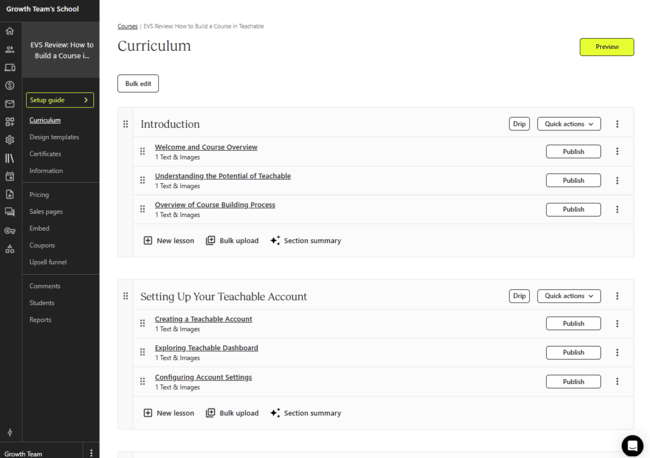
There are several actions you can take on the curriculum page. Like reordering lessons and sections using drag and drop. Adding new lessons. Bulk uploading ready-made lesson content from elsewhere. Generating section summaries with AI. But the main one is opening individual lessons to create and edit content.
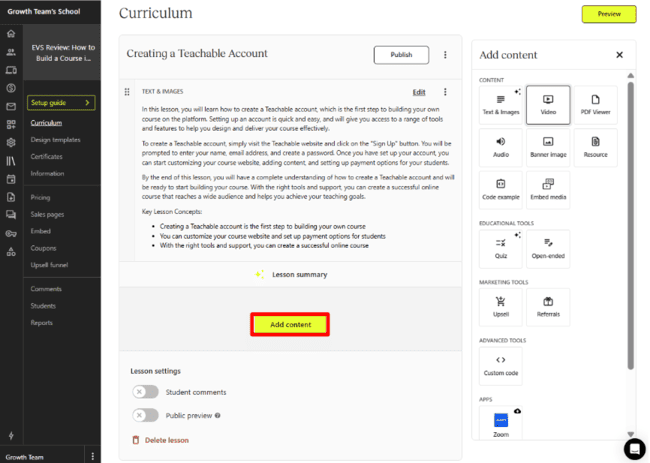
Like all of Teachable’s UI, the lesson editor is very user-friendly. I’m yet to come across an easier tool for creating lessons. Each page comes with a generated lesson summary. You can edit this yourself or get the AI to re-generate it until you’re happy. The Add content button opens a menu of content blocks to the right. This includes images, video, and audio files. PDFs and downloadable resources for students. Quizzes and open-ended questions for assessment and assignments. And a Zoom plug in for live sessions. So you can turn a lesson into a tutorial, for example. Every account has a 1TB video storage cap. And there’s a 20GB size limit on individual file uploads.
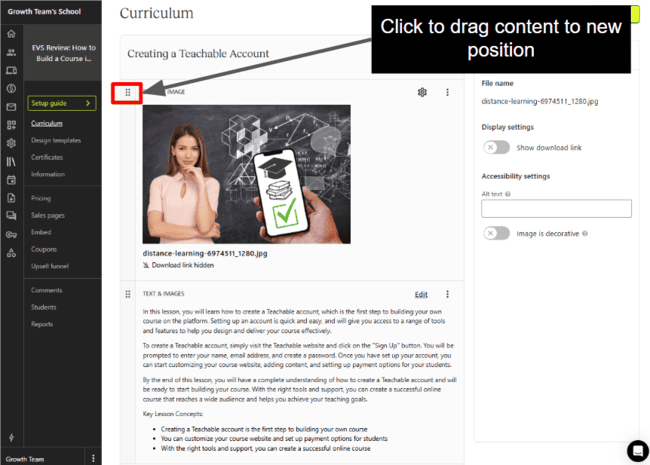
The content editor isn’t a simplified version of a drag-and-drop builder. You upload an image, for example, and it gets added in line with the rest of the lesson. What you can do is drag and drop blocks into different positions vertically.
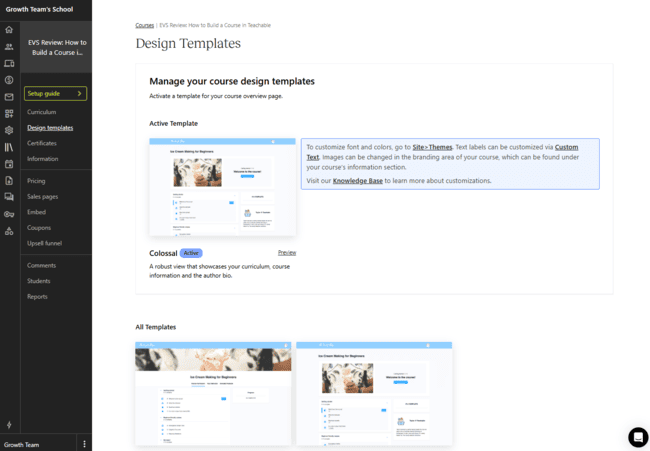
This means you don’t get much room to customize the design of your course. That’s part of the trade-off for simplicity, though. However, I feel Teachable could do more with its Design Templates. There are only two to choose from. Which feels like it’s not really a choice at all. You can customize fonts and colours. But not even in the course templates section. You have to go to Sites > Themes to do that.
One thing to note about Teachable products. They are not SCORM compliant. So you can’t export materials you make in Teachable to other learning management systems.
Create your course with Teachable for free
Delivering Courses with Teachable
Teachable is solid if unspectacular in terms of how learners access learning. By default, courses and all course materials are available on demand after purchase. Learners work through them in their own time.
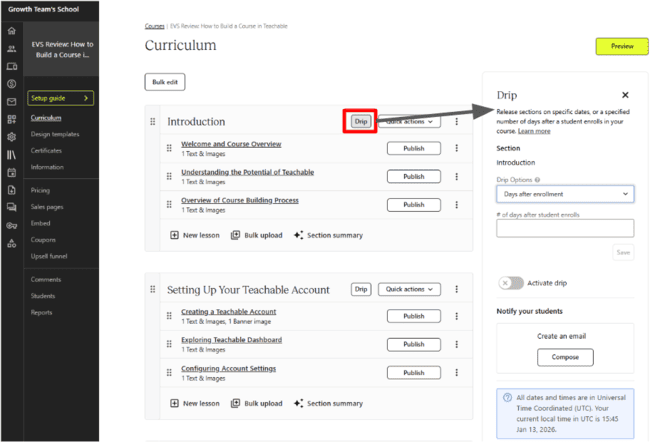
The one main variation to this is drip content. On the Curriculum page, you can set rules for releasing different course sections. Either specific dates for each section. Or a fixed number of days after enrollment. Some educators believe controlling the pace of learning like this improves outcomes.
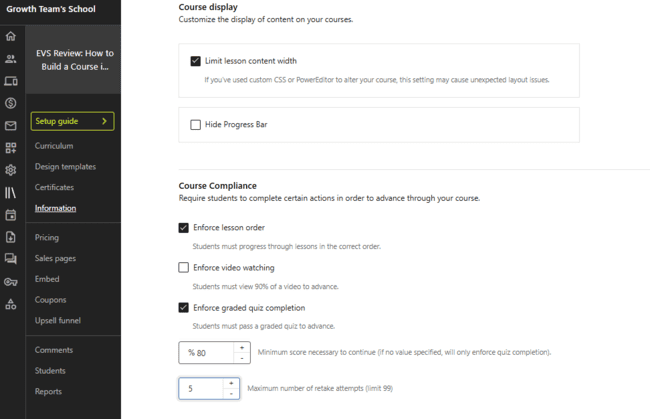
You can control progress with course compliance rules. These are in Information > Course settings. With these, you can set it so students can only progress through lessons in the order you set them. Or set a minimum watch requirement of 90% for videos. Or a learner can’t move on to the next lesson. And you can set pass grades and retake limits on quizzes. Again, if they’re not met, the learner can’t progress.
In this way, quizzes play an important dual role in Teachable. They’re the main assessment for tracking student progress. You can set short, open-answer test questions, too. But Teachable auto-grades quizzes. This saves you time. And makes tracking performance data easy, too. And then, with completion enforced, quizzes control the learner journey.
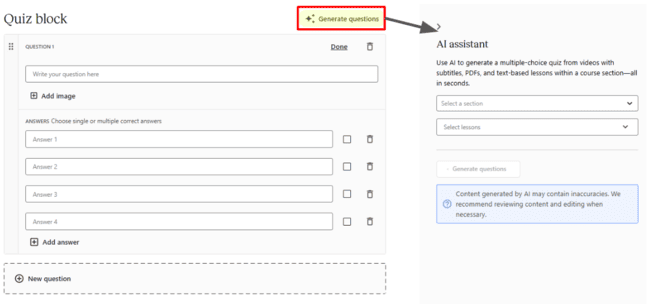
Quizzes are a content block for every lesson. As usual with Teachable tools, the big strength is simplicity. The quiz builder is a simple preformatted form. You add your question. You add your multiple-choice answers. You repeat with as many questions as you need. You can get AI to do the work for you. The cool part is that Teachable’s AI will generate quizzes based on video or PDF content. The downside is that it’s not the most sophisticated assessment tool. You’re only testing knowledge recall. Not application or reasoning.
Students can track their progress via a simple tracker bar on course pages. This shows the percentage of a course they’ve completed. By default, it updates after every lesson. If you set compliance rules, it will only update once a student meets the conditions. Including passing assessments.
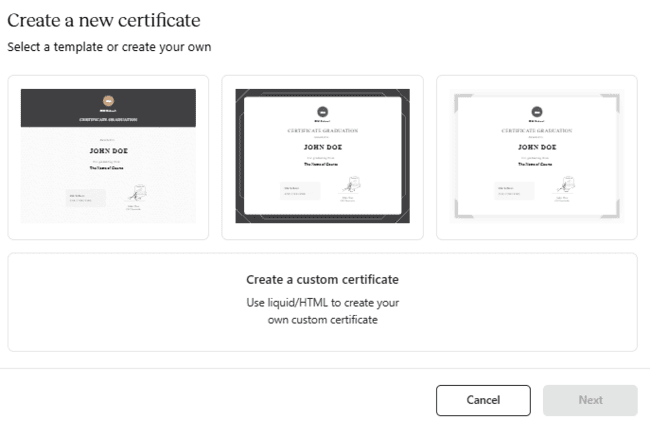
To reward student achievement, you can issue completion Certificates. In truth, this isn’t the most advanced feature. There are three basic templates with limited customization. If you have the know-how, you can code your own certificates in HTML. Or open source templating language Liquid. You can only have one active certificate per course.
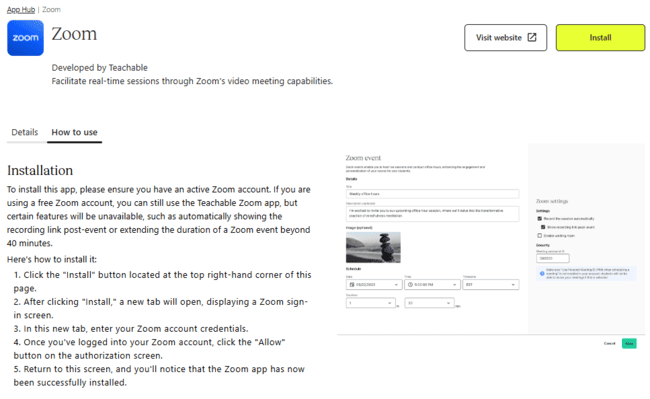
Live sessions with Zoom are a content block you build into lessons. And they play a key role in Teachable’s coaching product. But it does give you an alternative to on-demand or drip-released content. You need a Zoom account and to install Teachable’s Zoom plug-in. Once you do, you can schedule and host sessions in your Teachable school.
Build Your Course Website
I’ve covered how, before you build any courses in Teachable, you need to create a school. Your school is your learning business’s website. You don’t just build courses. You get a site to host them on, too.
Your school site serves 3 purposes.
- It’s the hub where you create products and manage your business.
- It’s the ecommerce store where would-be students browse your courses. And then make purchases and enroll.
- And it’s where enrolled students access and progress through courses or coaching. Every school gets its own Teachable subdomain. Or you can connect your own domain, if you have one.
As for building your site, Teachable does most of the work for you. It creates most pages automatically and leaves you to customize them. There are pros and cons to this. It’s supremely easy. Never made a website before? No problem. Teachable does it all for you. But you get what you’re given. There are white-label web-building tools available on Growth and Advanced plans. But on cheaper tiers, you don’t get much design or branding control.
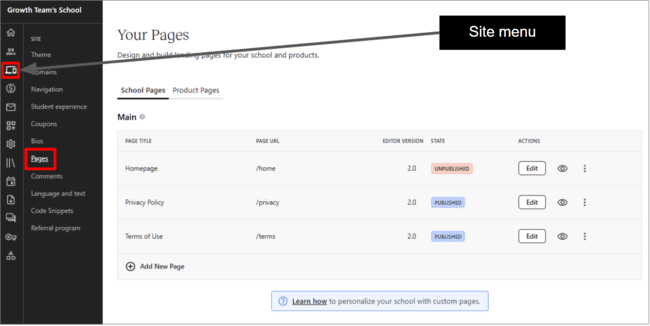
I’m not sure about Teachable’s navigation and visibility for its website tools, either. The Site section of the main menu is obvious enough. But for me, a page builder should be front and center. You have to scroll through the menu until you get to Pages. It feels hidden to me.
Pages is where you customize your external-facing landing pages. The main School Pages, like your Home page and About page. Teachable creates a Privacy Policy and Terms of Use by default to ensure you’re covered legally. And then Product Pages.
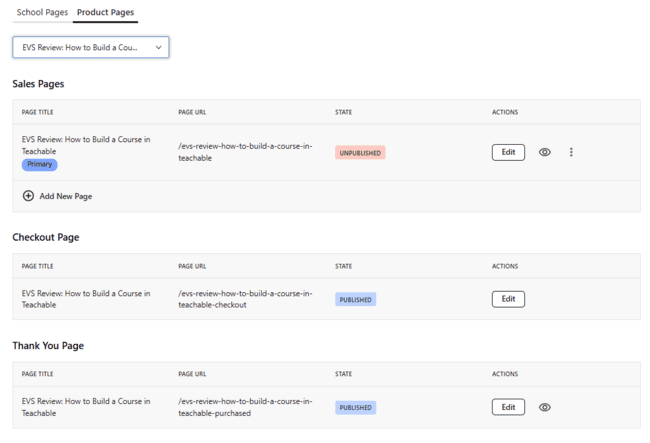
When you create a product, Teachable generates not one but three product pages. A sales page. A fully configured checkout page. And a post-purchase thank you page. You click Edit to view and customize them. But as I said about navigation, that’s a long path before you can start editing a product sales page.
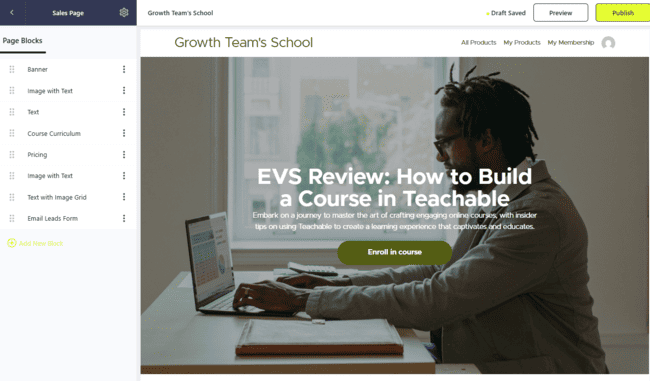
Above is the sales page Teachable generated for my course. To the left is a list of all 8 content blocks. So it’s a fully functioning, detailed page. And it looks good, too. You can drag blocks already on the page up and down into new positions. Add new blocks. And click on blocks in the main preview window for editing.
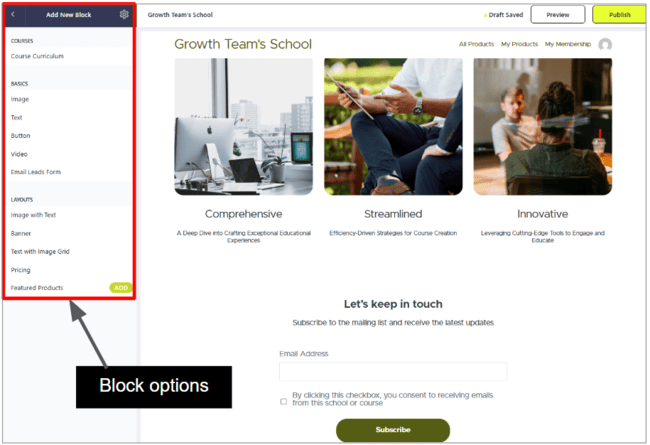
The content blocks are basic. There are just 5 content types to add. Images, text, button, video, and a lead capture form. And 5 layout variations. You can’t drop them exactly into position. The builder adds them to the bottom of the page. Then you can drag them up to where you want them. Editing options are equally simple. You can’t edit content inline in the main window. You click on a block. Then type your text or upload a video in the left-hand window. Design customization doesn’t go beyond background colours, text alignment, borders and padding.
If you want enough control to build a full branded website, you’ll find Teachable’s site editor very limited. But it’s undoubtedly easy and quick. You get a functioning, decent-looking course website with minimum effort and know-how.
There are other design tools elsewhere in the site menu. In Themes, you can add a logo and set colour palettes to suit your brand. In Navigation, you add the links you want in your navigation bar.
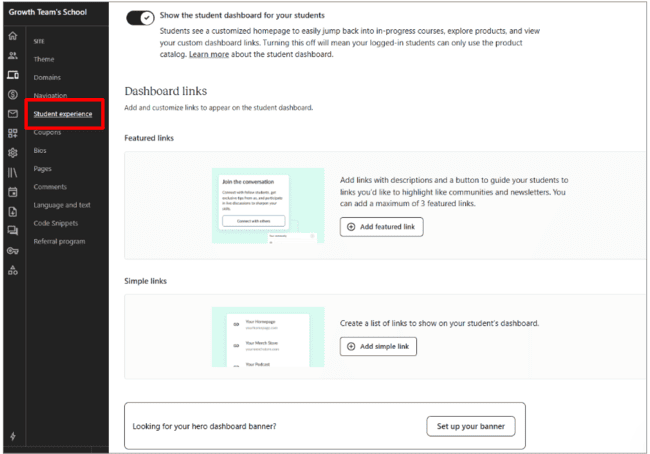
The Student experience page is for customizing the student dashboard. You don’t get any design control over the dashboard beyond setting site-wide themes. But you can decide what links learners see beyond their personal course library. Things like Community invitations and login. Or plugs for memberships and referrals. And you can add a hero banner with personalized product recommendations.
Get started with Teachable for free
Promote Courses with Marketing Tools
Compared to similar platforms I’ve used, Teachable’s marketing features are pretty light. The most interesting promotional feature is Teachable’s referral program. And it has discount codes, too. But it lacks tools for creating effective nurturing funnels.
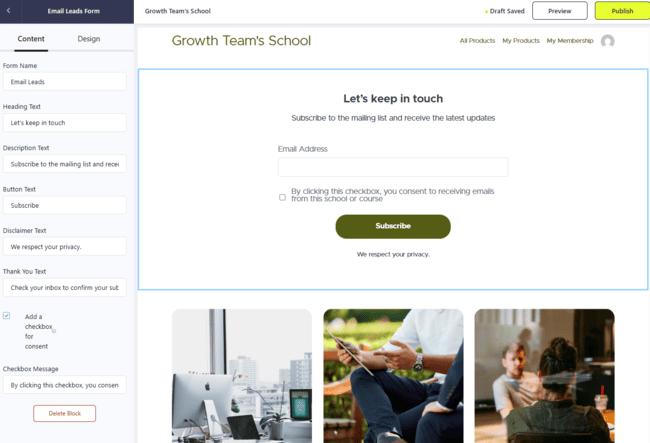
You can capture leads on any of your site pages. Forms are one of the content blocks. There’s one form and one form only. A simple one-field email capture form. You can’t add any other fields.
That’s fine for building a simple mailing list. There are two drawbacks as I see it. One, forms are a great way to capture lead data. Information shared in a form goes straight into your contact database. The more contact data you have, the better you can target. So it makes sense to have a way of adding more form fields.
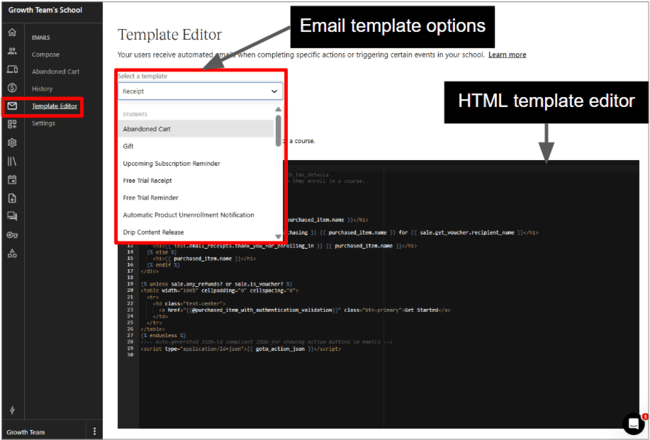
Email marketing is definitely not one of Teachable’s strengths. You can write and send emails in the platform. But that’s not the same as email marketing. Teachable’s email features are more for transactional communications. All email templates are for account and payment-related updates. Receipts. Subscription reminders. Certificate and completion confirmations. There’s nothing for newsletters or course promotions. You can create your own custom templates. But you have to know how to code HTML to edit any template. There’s no visual builder.
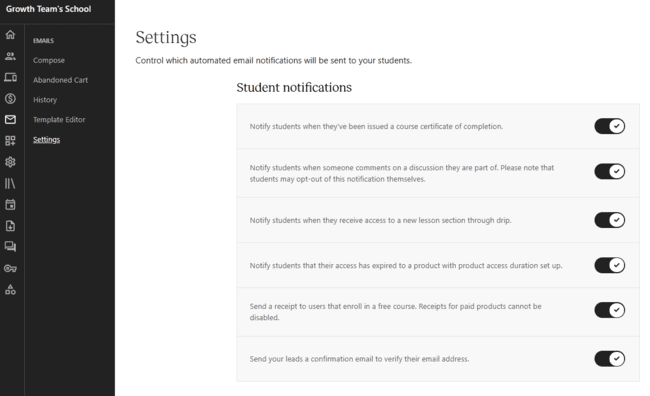
It’s the same story with automated emails. You can set student notifications to send automatically. Things like access to new drip content. Certificate confirmations. Email verification for new subscribers. But there’s no way to build automated nurture campaigns.
The one genuine email marketing feature Teachable has is abandoned cart emails. These let you automatically reach out to anyone who adds a course to their cart. But then doesn’t check out. You can add coupons to encourage them to complete the purchase. But again, you have to customize the template using HTML code. And you can only send a single email. The best abandoned cart follow-ups work as sequences. A gentle reminder first. Then maybe an offer to sweeten the deal. And a ‘can we help with anything else?’ courtesy follow-up.
So my overall take with Teachable is, yes, you can capture leads and build lists. But if you want to use your list to really nurture leads, connect to email newsletter software.
Teachable is much better at harnessing word-of-mouth marketing. Its Referral program is one of the features listed under Sites. This is another area where Teachable’s focus on simplicity really works. There’s no complex process specifying coupon details and redemption terms. It’s an easy two-step process. You set the reward the referrer gets as a percentage discount. And then the discount the friend gets. Teachable then generates a coupon link for the referrer to pass on. When it’s used, the referrer’s discount gets automatically applied to their next payment.
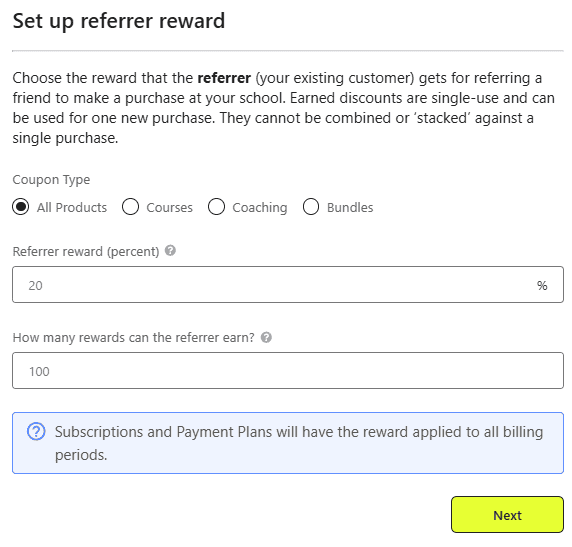
You can set both discounts to apply to specific products only. And you can limit how many rewards one referrer can earn.
Referral codes are one particular application of Teachable’s coupon engine. There are five other types of coupon:
- All product coupons: Discounts apply to everything you sell in your school. Useful for themed and seasonal sales events.
- Product-specific coupons: Apply to just one type of product.
- Pricing plan coupon: Useful if you want to offer a discount to promote a particular subscription tier.
- Single-use coupon: One person, one use coupons. Great for rewarding high achievers or loyal customers.
- Multi-use coupon: Sets a limit on how many times a coupon can be used. Useful for ‘first 50 customer’-type offers.
Selling Courses and Managing Payments
For every product you make, Teachable automatically creates a Checkout Page. Checkout pages link to the buy button on the corresponding product page. And have full payment processing built in. All you have to do is set up a payment gateway for your account.
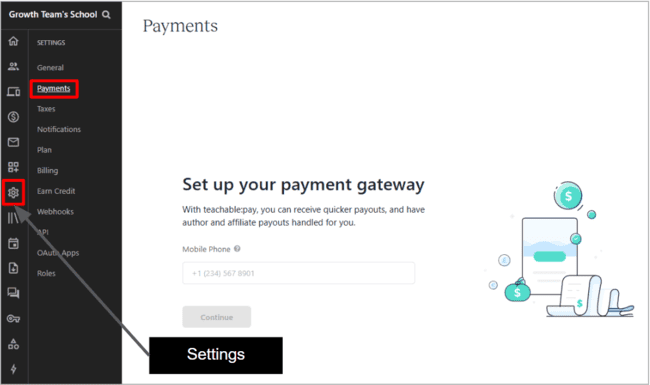
Teachable has its own payment gateway, Teachable:pay. You set this up on Settings > Payments. Teachable:pay is built on Stripe. So it supports payments by debit or credit card (and is fully PCI-DSS compliant). Google Pay and Apple Pay. And PayPal for payments in US dollars. In the US and UK, you can accept buy now, pay later (BNPL) payments, too. This is via Klarna or AfterPay.
Teachable:pay is available in more than 80 countries worldwide. If it isn’t available in your country, you can use a separate monthly payment gateway. This also serves as a backstop if you don’t set up Teachable:pay. The main difference is in payment schedules. The monthly gateway transfers earnings from your school to your account once a month. With Teachable:pay, you can choose daily, weekly or monthly transfers.
On higher plans, you can choose an alternative third-party gateway.
Teachable payments automatically handles taxes in close to 200 countries. This is a major attraction for international course vendors. A great example is Coffee Break Languages. Founded in 2005, this hit language learning podcast has listeners in 196 countries. When founder Mark Pentleton decided to move into selling courses, tax and payment processing were major hurdles. Teachable provided the answer.
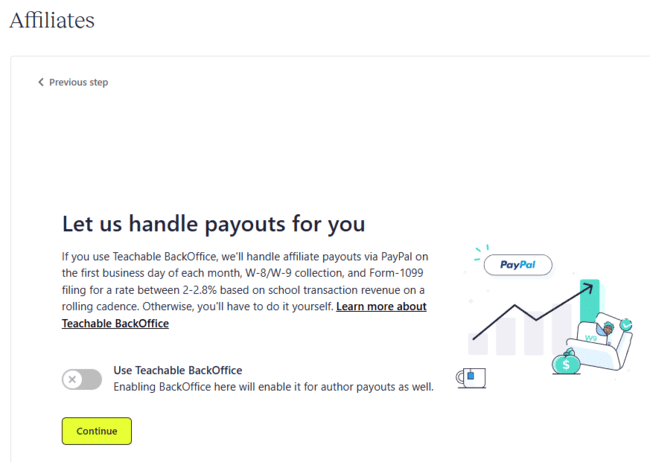
Coffee Break Languages also uses Teachable’s BackOffice administration service. You need this paid-for extra to accept PayPal, Klarna, and AfterPay payments. But it automates authors and affiliate payouts, too. Authors have administrative rights to create content for your courses. You can incentivize this by offering a commission cut of every course sale.
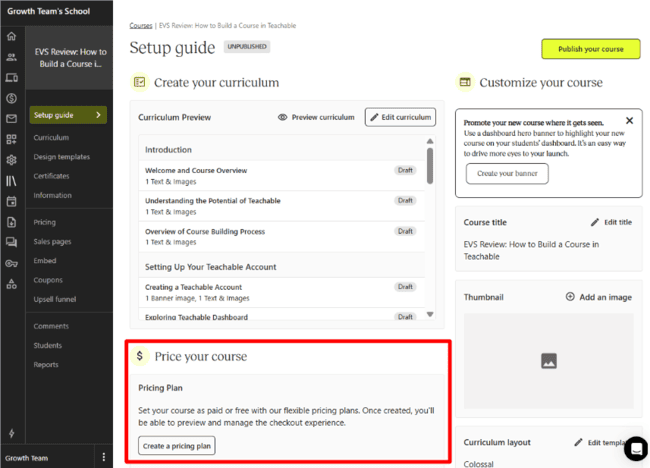
As for what you charge, you create pricing plans for your products via the Setup Guide page. There are 4 options. Make a product free. Sell it via a one-time purchase. Set a payment plan with a fixed number of monthly payments. Or set up a recurring subscription.
Teachable gives you flexibility in how you price products. You can set more than one plan per product. This allows you to accommodate different payment preferences. You can create product bundles. And do things like add more products as pricing tiers go up. Or offer discounts for multiple course enrollments. And you can sell memberships to a school rather than individual products. Memberships by default give customers access to all products in a school. But you can set limits. So a bronze membership makes all digital downloads available. Silver comes with access to all courses. Gold includes coaching and so on.
Users compare Teachable’s pricing flexibility favourably with course marketplaces like Udemy. It was a big factor in virtual assistant coach Erin Booth choosing Teachable over Udemy. She uses the membership feature to give learners lifetime access to her courses. So access doesn’t end once a student completes the course. This has allowed Erin to focus on updating and improving her courses over time. This continuous learning aspect has a strong appeal for her students. And it shows how you can be successful with just 4 courses. But she audits content every six to 12 months. And includes her learner community in the improvement process.
Start selling courses with Teachable
Manage Students in Teachable
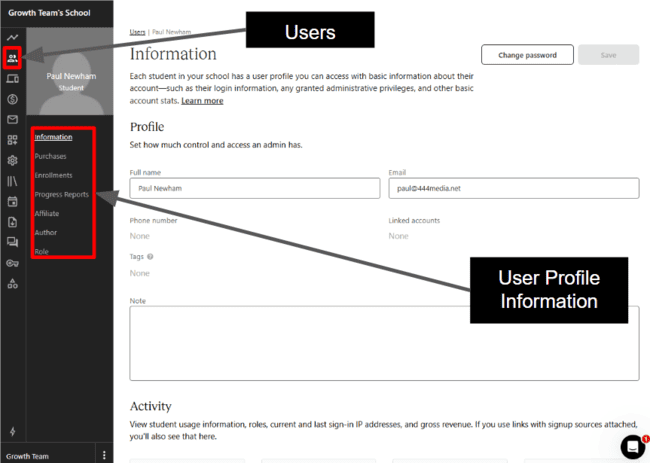
When someone buys a course or signs up for a free product, they enroll automatically as a student in your school. This creates a student profile in Users > Students. You can view purchases and enrollments. And progress reports on live courses. Profiles include built-in affiliate tracking if that applies. Things like how much they have earned. How many referrals they’ve made or how much content they’ve authored.
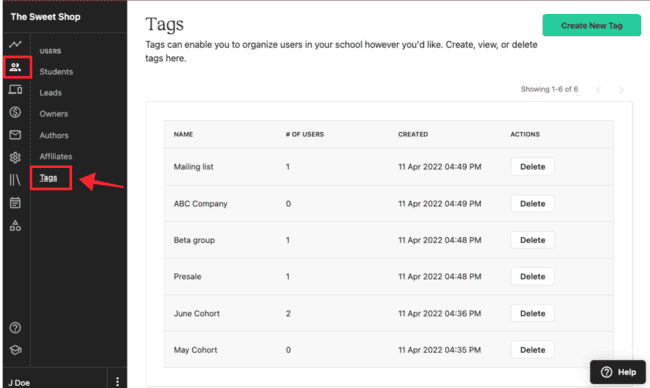
Teachable stores details of anyone who fills in an email form in Users > Leads. These aren’t necessarily customers or students (though they can be). They’re leads that have shown an interest in your school or one of your products. There aren’t many targeting or lead nurturing features. You can add tags to students and leads to create segments. They can be anything you want. And are useful for naming different cohorts. But you have to add and manage tags manually (though there is a bulk tagging tool). And you can’t build detailed segments. Tags are mostly useful for quickly narrowing down who you send emails to.
Teachable features for student engagement include its Community social space. This is mainly a straightforward message board. You can allow comments on lessons, too. It’s a bit of a drag that you have to switch the comments feature on for every lesson individually.
Tracking Progress & Analytics in Teachable
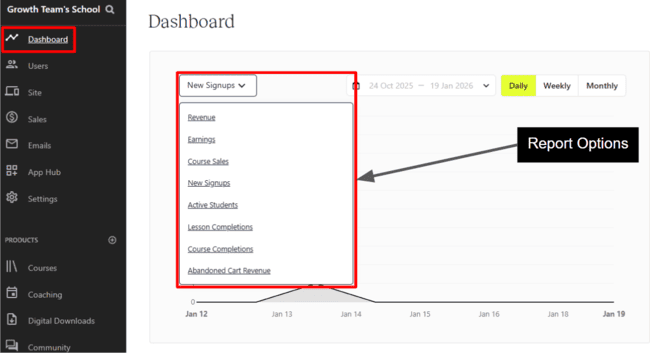
Like most things, Teachable keeps its reporting simple. Every school dashboard features 8 reports. You get basic analytics of trends in revenue, earnings, and course sales. Then abandoned carts, new signups, and active students. And the number of lesson completions and course completions.
These reports are accessible and easy to understand. But they’re limited in detail. All you get is a graph showing activity over a time period you choose. There’s no way to click through to get details of individual events.
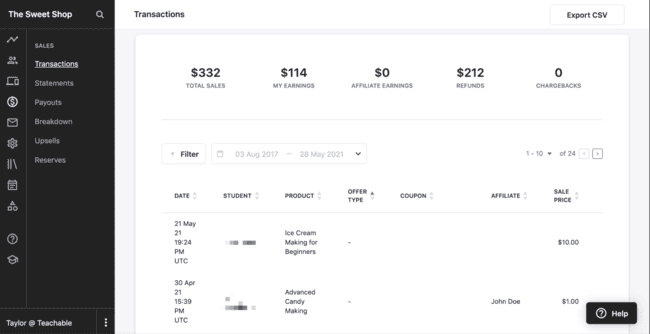
You do find more detail elsewhere. The Sales section is all about financial reporting. On the Transactions page, you get a log of all sales. It’s good to get a breakdown of individual transactions. And there’s a long list of filters for narrowing down the transactions list. You can also view a breakdown of transactions by day, week, or month. And get monthly financial statements for schools, affiliates, and authors. But it’s all just plain lists of raw data rather than in-depth sales reports. There are no visualization tools to help look at trends. And no metric calculations like conversion rates or average revenue per customer.
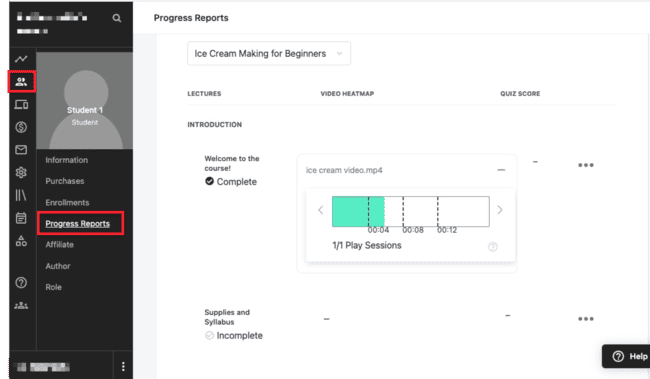
I’d say Teachable does a better job with its student progress tracking tools. Every student profile includes a progress report. Here you can view quiz results and details of every lesson completed. But there are some more interesting features. Like the video heatmap that visualizes how much of a video a student has watched. And a similar graphic that shows the progress on every course a student has enrolled in.
Create courses with Teachable for free
Teachable Integrations and API
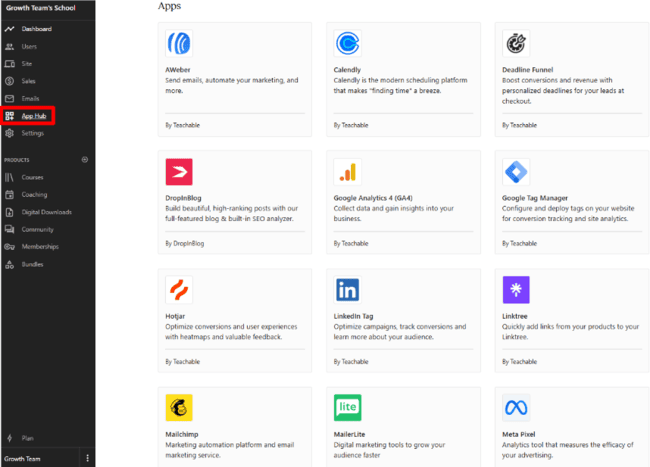
Teachable has 23 native plug-ins for third-party apps. That’s not the largest choice I’ve ever seen, but it does have the most used ones. For example, it has integrations for several popular email marketing platforms: MailerLite, ActiveCampaign, Kit, AWeber, and Mailchimp. And analytics tools like Google Analytics and Hotjar. And platform-specific plug-ins for Meta, TikTok, LinkedIn, and Pinterest. If you want more control over your school website, you can connect to WordPress.
On the Growth and Advanced plans, you can use Zapier and API to connect any tool you’d like.
There are awesome great success stories around Teachable’s software partnerships. iOS developer and blogger Antoine van der Lee made $40k from his first course launch in 2024. He had a simple tech stack strategy. Teachable for course building, sales and delivery. Kit for lead growth and nurturing.
But he also struck on a savvy approach to using the LinkedIn plug-in. When students complete a course, their certificate uploads to their LinkedIn profile. LinkedIn then prompts them to write a post about their achievement. This serves as a powerful organic plug for Antoine’s course.
The biggest downside to Teachable’s integrations is that it limits the number you can have. On the Starter plan, you can just have one. But if you want to run live sessions, you need to connect to Zoom. So that in effect makes it zero. The maximum number on the Growth plan is still only 5.
Teachable Pricing and Plans: How Much Does It Cost?
Teachable has 5 payment plans. Prices start at $29 per month for the Starter plan. You can choose between monthly or annual pricing. With a 22% discount if you pay annually.
The main difference between tiers is how many active products you can have. You can create as many products as you like on all Teachable plans. And keep them as drafts in your account. But you can only have so many ‘live’ and available to buy through your school at any one time. On the Starter plan, you can have one active product. On the Builder plan, 5. On Growth, 25, and Advanced, 100.
The Starter plan includes all the main course building and management tools. All product types. A website for your school. Payments, referrals and coupons. There’s a 7.5% commission charge per sale. This gets wiped on all higher tiers. So you keep everything you earn from course sales from the Builder plan up.
The Builder plan unlocks all email features, including templates. On the Starter plan, you can send plain emails and abandoned cart messages. But no other email types. There’s no limit on how many emails you can send. The Builder plan also includes live chat support.
The Growth plan includes white-label site building, 5 integrations, and access to a Zapier integration and Teachable’s API. The Advanced plan includes unlimited integrations. The custom-priced Unlimited plan includes priority support, managed migration from other LMSs, and a dedicated account manager.
Teachable doesn’t have a free plan. You can test it out with a 30-day free trial with our link. You have to provide payment details to access the trial.
| Commission | Active Products | Students | Key Features | Price (paid annually) | |
| Starter | 7.5% | 1 | 100 | AI Course Building Tools All Products Community Abandoned Cart Emails Referrals Teachable: pay 1 integration | $29/month |
| Builder | 0% | 5 | 1000 | Email Templates Chatbot Support 3 integrations | $69/month |
| Growth | 0% | 25 | 5000 | White Labelling 5 integrations, including Zapier and the API | $139/month |
Teachable Customer Support
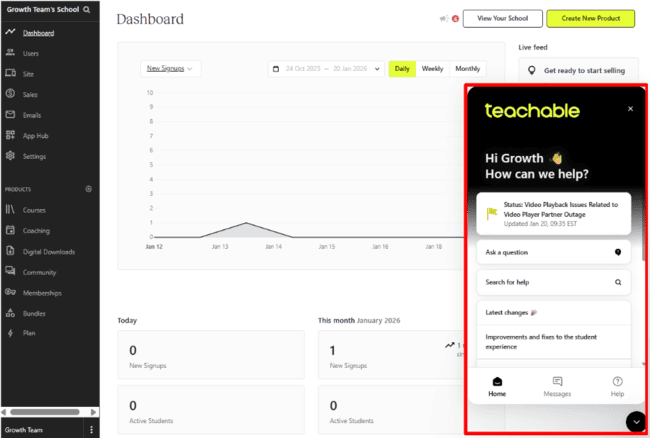
Every page in Teachable has a Messages button in the bottom right corner. This is your gateway to customer support. The Messages home page gives product updates.
But the main purpose is access to Teachable’s two frontline support options. Its online knowledge base. And an AI chatbot.
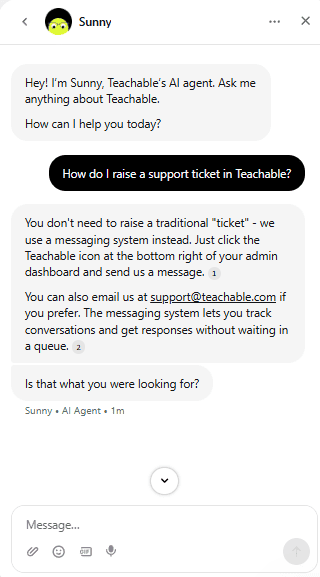
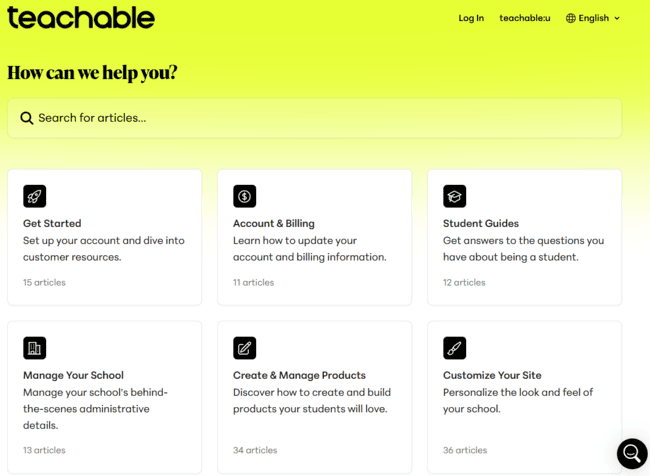
Teachable trains its chatbot, Sunny, on the knowledge base. Responses from Sunny quote from an article with links to check it out yourself. I found it just as easy to search the knowledge base directly. The resources here impressed me. There are 200+ articles. The articles are well-written and easy to understand. A lot of articles have videos and images. Though some standalone videos would be nice.
You can’t contact Teachable’s support team directly through the Messages console. If you have a query the chatbot can’t resolve, it will create a ticket for you. It can be a little frustrating having to go through the chatbot to contact the support team. Alternatively, you can send an email. But it takes longer to create the ticket. At least once the chatbot escalates your query, it’s done quickly.
Final Conclusion: Is Teachable the right course platform for you?
So is Teachable right for you compared to other course platforms? I hope from my review one message is loud and clear. Where Teachable is good, it’s very good.
Teachable is a real winner, I recommend you try it out.
It keeps simplicity and speed over advanced features. And even if you’re just starting out selling courses, try Teachable.
If you want a fast, simple way to turn your current product into a course. Definitely try Teachable.
It is also strong if you have an international audience and offer your course in multiple languages. It has easy international payment and tax handling.
Teachable won’t suit everyone. You can’t create complex and elaborate web designs. If you want all your marketing tools to grow your audience in one platform, you could consider a full all-in-one platform.
Create your course with Teachable for free
Teachable Frequently Asked Questions (FAQ)
How much is Teachable a month?
Is there a free version of Teachable?
Is Teachable safe and legit?
Can you really make money on Teachable?
Is Teachable good for beginners?
Create your course in Teachable for free
Which is better, Udemy or Teachable?
With Teachable, you get full control over running your own business. There are no technical course requirements as there are on Udemy. There are no restrictions on pricing. You can set different pricing plans. And you control the relationship with your customers.
Teachable Alternatives
Teachable vs. Thinkific
The main difference between Teachable and Thinkific is simplicity versus course features. Thinkific is a similar course-building and selling platform to Teachable. It’s user-friendly and affordable. And gives you everything you need to start and run an education business.
Teachable prioritizes ease of use over all else. Thinkific gives you more features for your courses. You get more control over course structure, assessments, and site customization. It has a larger integration ecosystem and more advanced learning features. It appeals to more established educators and small training businesses. Teachable is ideal for beginners. Or solopreneurs that want speed and simplicity rather than more sophisticated courses.
Check out our Thinkific review to compare the platform.
Teachable vs. FreshLearn
The main difference between Teachable and FreshLearn is how ‘all-in-one’ they are. Both are user- and beginner-friendly course platforms. They combine course creation tools with ecommerce features. Teachable mostly sticks to these core features. It uses AI and automation to make building and selling as easy as possible. Its biggest strengths are that it builds most of your course sites for you. And it has excellent integrated sales and payment tools. That again are all set up for you.
Teachable has a few simple marketing tools. A referral scheme to incentivize word-of-mouth business. Discount coupons. A student message board. FreshLearn leans into these much more. It has a full loyalty program. And links that to gamified student progress tracking and rewards. It also has more advanced email marketing tools. So you can do much more for attracting and nurturing prospects. And Teachable costs $189/month for 25 active courses. FreshLearn gives you unlimited live courses for $39/month.
Overall, Teachable is the simpler platform. It helps you launch a learning business fast. And keeps managing your business as light touch as possible. FreshLearn is more of a ‘full funnel’ platform. It’s the better choice if you want tools to find and nurture customers. And lock in loyalty.
Read our full FreshLearn review to find out more about how these platforms stack up.
Teachable vs. Learnworlds
The main difference between Teachable and LearnWorlds is learner experience. LearnWorlds is a bigger platform with more features. This includes more tools for marketing and sales funnels. And more advanced analytics. But most importantly, it puts a much bigger emphasis on student engagement. This includes the ability to create interactive videos. With AI-generated learning checkpoints, summaries, and live quizzes. And social learning tools that let you embed discussion tasks in any learning resource.
These are great tools. But they’re pricey to unlock. LearnWorlds’ cheapest plans stick to basic features. Its Starter plan charges a fixed $5 commission fee per sale. And limits you to a three-page website. If you’re starting out, Teachable’s simplicity wins the day. LearnWorlds makes sense for larger businesses looking for advanced course and marketing features.
Compare Teachable and Learnworlds in our review of the best online course platforms.
Teachable vs. Podia
The main difference between Teachable and Podia is what they specialize in. Podia is not a specialist course platform. It’s designed for creating and selling digital products, including courses.
Not many platforms can claim to be easier to use than Teachable. Podia gives it a run for its money. Where it beats Teachable is its course and web page builders. Teachable relies on doing a lot of the building for you. With simple tools to tweak things. Podia has much more flexible no-code editors. Its customizable section templates give you much more freedom with design. Another benefit is that Podia has more email marketing tools.
But because it’s not a specialist online learning platform, Podia falls short in some areas. Its only assessment feature is basic quizzes. And it doesn’t give you much help with tracking student progress. Teachable is a much stronger platform in both these areas.