
How to Create an Email Template in Outlook: Full Guide for 2026
 Paul Newham
Outlook is one of the world’s most popular email services. 1 in every 7 emails comes from an Outlook account. As part of the Microsoft Office bundle, it’s very popular in the workplace.
Businesses send a lot of similar, recurring emails. Typing out the same messages over and over eats up a lot of time. This is especially true if you want to send branded emails with your logo in the header. Outlook lets you build HTML emails. But it’s a slow, clunky process.
In Outlook, you can save emails as templates to use later. For common emails and HTML designs, templates cut down on the repetition.
In this guide, I’ll walk you through how to create and use templates in Outlook step by step. But there’s also a much better way to use templates in Outlook. One that gives you more choice, flexibility, and better-looking emails.
What are Outlook Email Templates?
Outlook email templates are reusable blueprints for HTML emails. If you’ve ever worked with Word document templates or Excel worksheet templates, it’s the same idea. Email templates come with ready-made styling, formatting and layouts. You then just have to add your content into placeholders for each email.
Templates cut down on repetitive work and speed things up. The emails you send are still looking good, professional and consistent. Consistency also helps with readers recognising your brand.
How to Create Templates in Outlook
Outlook doesn’t promote its template feature very well. You have to know where to look and go through several steps to start using them.
Older versions of Outlook for Windows and Outlook webmail had different ways of creating email templates. But a new release of the desktop client in 2023 gave it the same interface as webmail. So below is how to make a template in the Outlook web app and the new Outlook for Windows app. I’ve used screenshots from webmail.
1. Sign in to your Outlook account.
2. In the Home tab, click New, then Mail in the upper left corner.
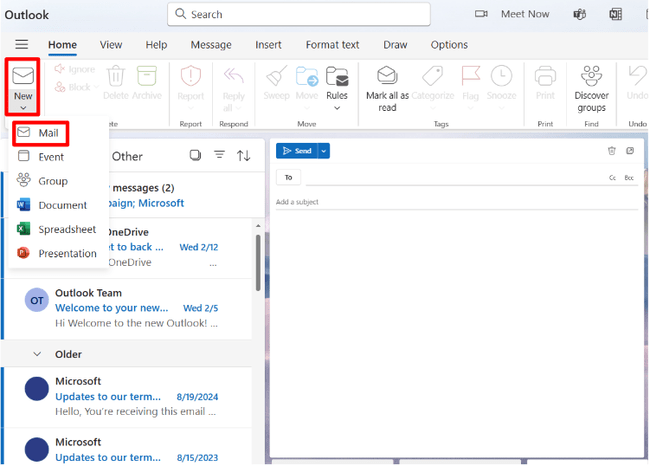
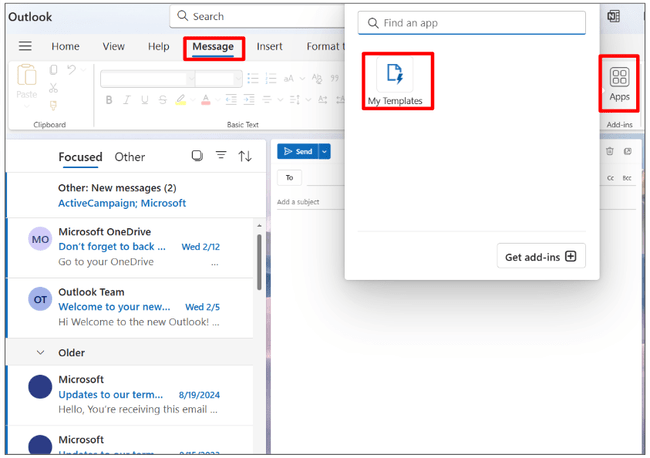
3. With a new message window open, click Message. Select Apps and then My Templates. This opens a new dialog box to the right of the screen.
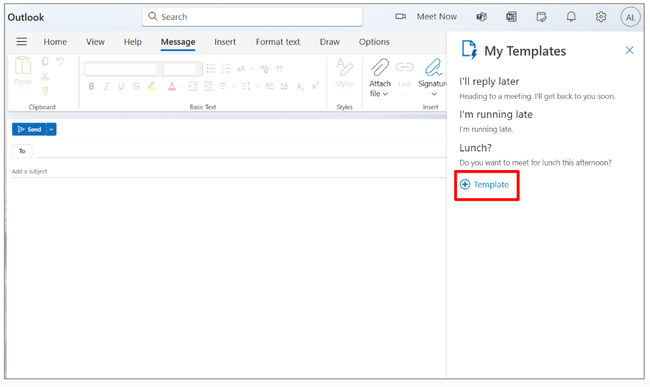
4. Click + Template in the sidebar to create a new template.
5. Now you’ll see the main email editor (1) with the new template builder in the sidebar (2). You can type straight into the template builder’s text box (3). But it’s plain text only. That’s fine for standard emails. But not much good for marketing emails.
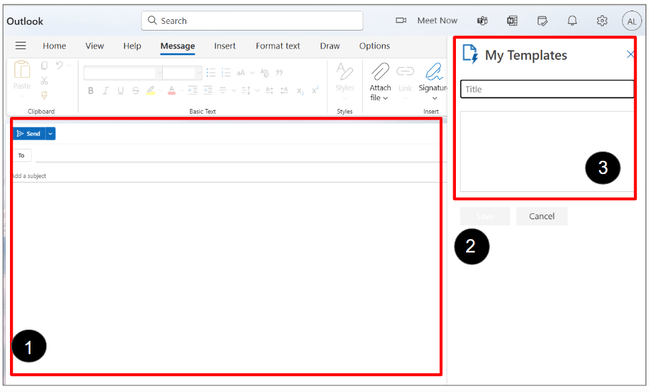
6. For HTML designs, create your email in the main message window. Use the Insert, Format Text, Draw and Options tabs in the quick access toolbar to build your design. Outlook is a WYSIWYG editor, it works like a word processor. It’s nowhere near as user-friendly or flexible as drag-and-drop HTML email editors. But some of the things you can do include:
- Adding images
- Inserting tables to create different layouts (e.g. adding columns)
- Using different text styles
- Drawing objects
- Adding links, emojis and signatures
7. Once made, copy and paste your design from the message body into the template builder’s text box.
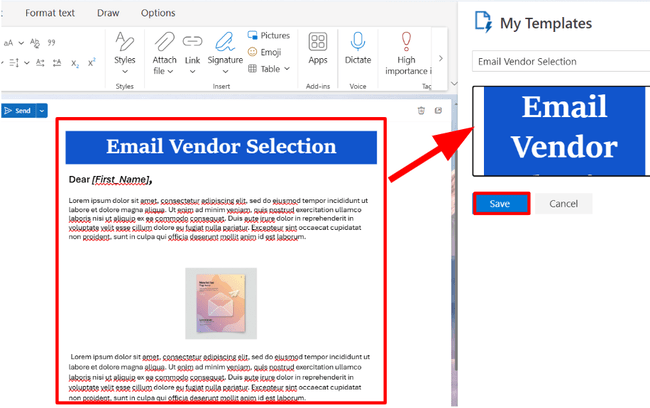
8. Click Save. Your template will now be available under My Templates for future use.
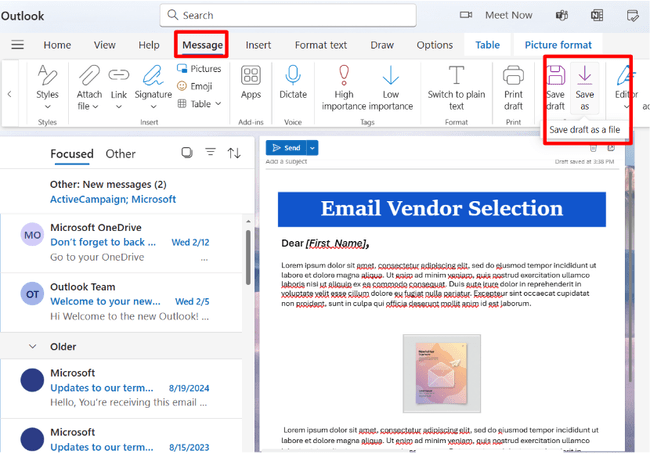
9. You can also save your templates to your device. Click Message, then select Save as and choose where you save it. One benefit of doing this is that you can easily move a template from the desktop client to webmail, for example. And then access templates on other devices.
Learn more in our step-by-step guide on how to create a newsletter.
How to Create a Template In the Classic Outlook Email Client
There’s a good chance you’re still using the ‘classic’ Outlook for Windows desktop client. The app didn’t automatically update when the new version was launched. You had to download it. So if you still have the same Outlook from before 2023, it’s the classic version.
Here’s how to create a template in it.
1. Open Outlook for Windows. If prompted to, sign in.
2. Click New Email from the Home menu to start a new message.
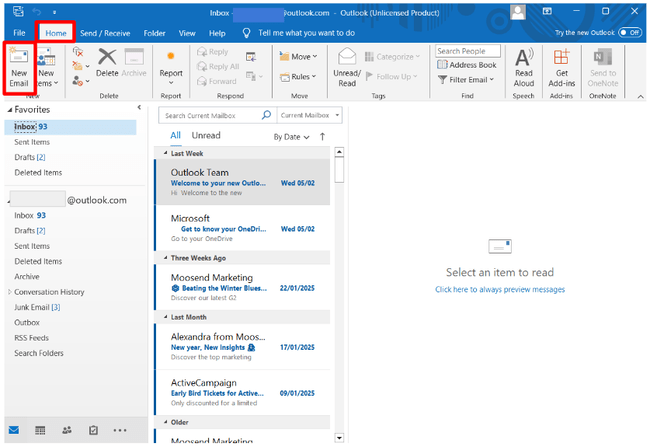
3. Create your template in the new email message window. Like the webmail client, Classic Outlook for Windows has a WYSIWYG editor. If you use Microsoft Word, you’ll be familiar with the tools. It’s got its limitations for building HTML designs. But there are more options than on webmail. For example, you can:
- Toggle between HTML, plain text and rich text formatting.
- Set Themes for the whole template to fix colours, fonts and effects.
- Use Quick Parts to drop in pre-formatted blocks of content.
- Format layouts with text boxes as well as tables.
- Easily change background and cell colours.
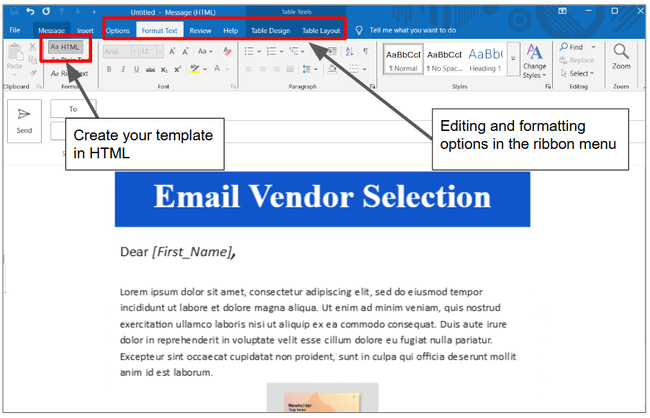
4. To save your template, click File in the top menu. Then select Save As and choose Outlook Template (*.oft) as the file type. Give your template a name and click Save.
How to Use Outlook Templates
Once you’ve created an Outlook email template, it’s time to use it. My template combines layouts, branding and placeholders for images and text. Next time I want to send a newsletter, I don’t have to go through all those steps. I just add the content I want to my template. And save a lot of time.
Here’s how to do it in webmail and the new desktop client.
- Click New Message to start a new email.
- In the Insert menu, click Apps and My Templates.
- In the My Templates sidebar, select the template you want to use. It will automatically appear in the email body.
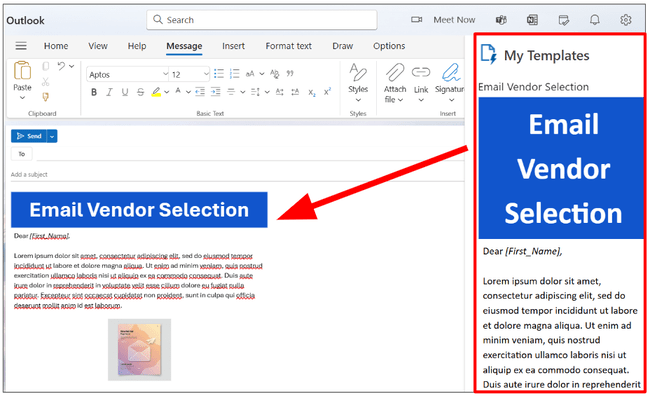
- Edit the content as needed (1). Add your recipients’ email addresses and subject line (2). Use merge tags to personalize your message. For example, by adding a contact’s first name to the subject line.
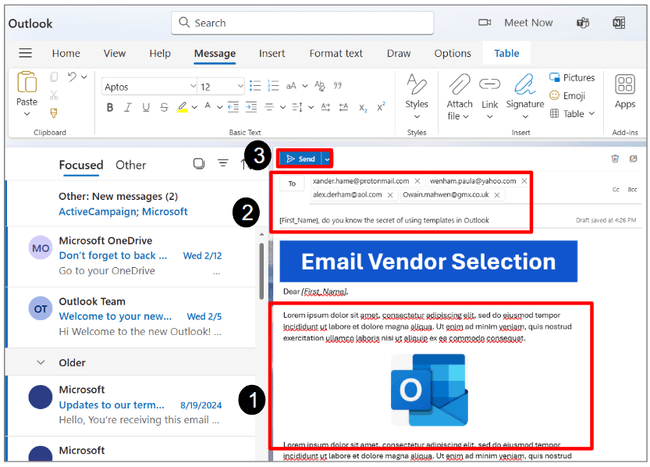
- When everything is ready, click Send.
How to Use a Template In Classic Outlook Email Client
Like webmail, the classic desktop app has a My Templates section. You can use this to save templates to your account in the cloud. You can then access and use these templates as described above. But unlike webmail and the new desktop app, you can also upload templates from your computer. This means you can load and use templates created elsewhere. Here’s how to do it:
- Open Outlook and click New Items in the top menu.
- Select More Items, then click Choose Form.
- Open the Look In dropdown menu. Select User Templates in the File System to find your saved templates. Or click Browse to find templates saved elsewhere.
- Click on the template you want to use, then press Open.
- Edit your template in the email builder window to get it ready to send.
How to Edit Email Templates in Outlook
Outlook lets you update your email templates very easily. It’s a lot faster than starting from scratch with a new one.
There are two ways to edit a template in Outlook. In the My Templates sidebar, hover the mouse over a template. You’ll see a small edit pen icon appear.
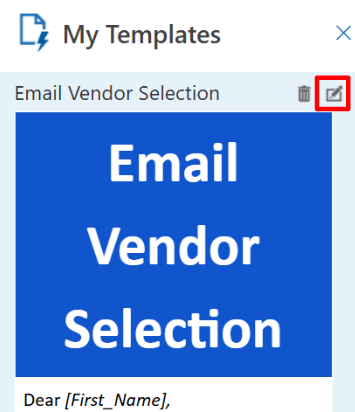
Clicking on this opens the template builder. You can now edit your template directly. Click Save when you are finished to save your updates.
The drawback of this option is that the editing box is very small. It works ok for editing plain text in a template. But it’s awkward to work with images and layouts.
So you’re better off using the second editing method. Which is to open it in the main email window. Edit it like you would for sending an email. And then copy and paste it back into the template sidebar. And save it again as a new template.
In the classic Outlook desktop client, it’s also best to edit templates in the main email window. But then go to File > Save As to save it as a new template file.
The Pros and Cons of Using Outlook Email Templates
You can use email templates in Outlook for routine emails or to create attractive headers and footers for your emails. However, while they offer convenience, they also have limitations. Here are the pros and cons of Outlook templates:
Pros
- Saves Time: Templates help speed up often repeated emails. And cut down on the design time with HTML emails.
- Improves Consistency: Using the same template keeps your branding consistent.
- Reduces Errors: There’s less risk of mistakes with formatting and repeat content.
- Added Convenience: Templates are great for sending pro-quality emails on the move. All the design and formatting is already done. You just type in your content and hit send.
Cons
- Limited Design Options: Outlook lacks the advanced tools required to make great-looking HTML emails.
- Awkward to Use: The WYSIWYG editor is not as intuitive as a modern drag-and-drop email builder.
- Lacks Flexibility: Along with being clunky to use, Outlook’s email editor doesn’t give you much freedom to customize designs.
- Not for Email Marketing: For all of the above reasons, Outlook is not a great choice for newsletters. To make great-looking campaigns, you need better templates and more choices. Plus more editing options and a simpler interface.
- Difficult to Share: In webmail and the new desktop client, templates are not easy to share. You cannot upload other people’s templates. All you can do is copy and paste to create a new one.
- Formatting Issues: Outlook is notorious for rendering HTML differently to other email clients. A design that looks great when you build it may appear very different when you send it elsewhere.
A Better Alternative to Outlook Email Templates
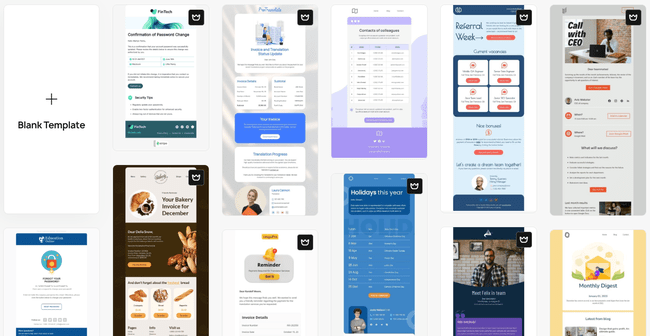
I wouldn’t recommend trying to make email marketing or newsletter templates in Outlook. It’s too tricky, too limited, and the final results are not very good at all. If you still want to use Outlook to send HTML email designs, there’s a better option. Get your templates from somewhere else.
Email editors like Stripo are made for this. Stripo has a user-friendly drag-and-drop email editor and 1600+ templates. So you can build much better templates than you can in Outlook. Much more easily.
Stripo has integrations with both Outlook App and Outlook Web. You can simply import a Stripo template to Outlook and send your emails.
We collected the best Outlook email templates for newsletters, seasonal campaigns, and different industries. Here’s a shortlist of email templates I picked out from Stripo.
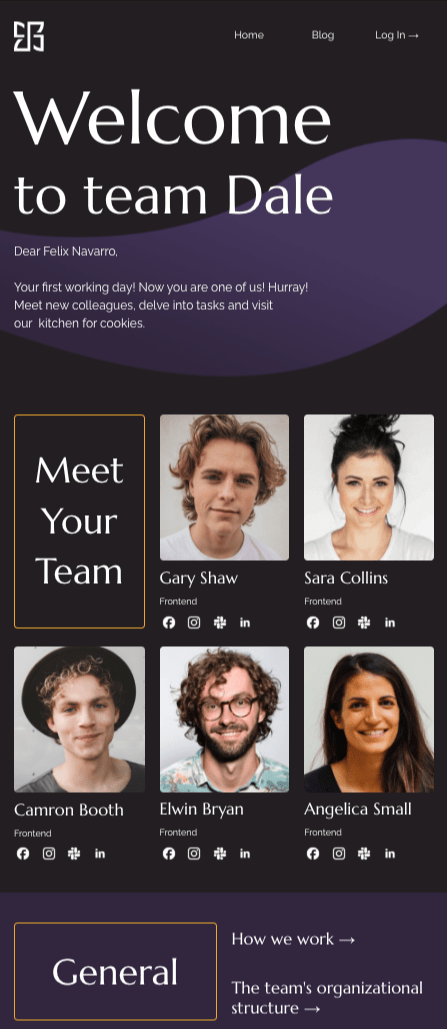
This template shows two major improvements on anything you can make in Outlook. One is the use of colour. In newer versions of Outlook, you can’t set background colours and images. And the layouts on this template would be next to impossible to achieve in Outlook.
This is a template for HR teams to use to welcome new recruits. But it could be adapted for universities, colleges, schools, sports clubs. Any kind of organisation where you want to welcome new people. The layouts are simple but effective and it’s easy to scan. It’s a great example of a template that needs very little customization. Just fill in your own content and hit send! Check out our school newsletter ideas guide for more education email templates and tips.

The simplicity of this template looks more like what you can achieve in Outlook. The stripped-back colour scheme. The main text panel looks like a standard, everyday email. But it’s the little touches that make this one stand out. Like the overlay of that text panel with the header image. The subtle contrast of the text box shading. And the big prominent CTA button.
This is a template built for event promotion. But what I like most about it is how versatile it is. That’s the beauty of a good-looking, professional, minimalist design. You could use this for any number of things. Including newsletters and company announcements.

This is another very versatile template. Again, it’s designed for promoting an event. But it also doubles up as an employee or student showcase template. And those pen-pic style photo-text box combinations can be used for lots of other things. This would also make a great newsletter template. Each image and text box pair is ideal for a different story. With a link through to your website for the full articles.

This webinar promo template is back to a very simple colour scheme. But it’s the layouts that make this a great template. It packs in a lot of information. Details about the webinar’s presenters. The full schedule. FAQs about the webinar topic plus plugs for other webinars. But the biggest compliment for the design is that it doesn’t feel cluttered at all. It’s very well organised and easy to scan.
This template is ideal for sharing event schedules and helpful details for attendees. The details and FAQ sections could be used to share photos, slides or an executive summary.
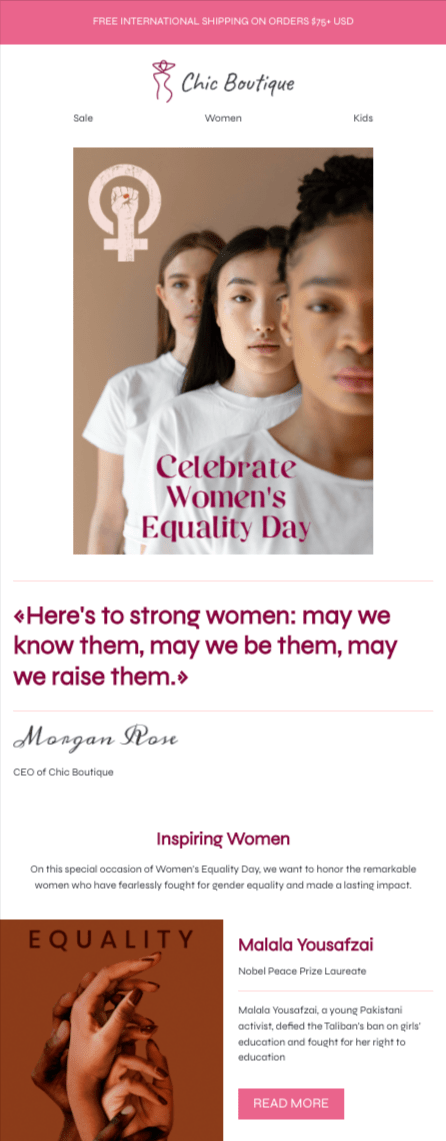
This celebration day template stands out for me for its use of images. Along with the colour scheme, they create visual interest.
The simple layout means this is easy to customize for other uses. Drop in your own images and tweak the colour scheme, and you could promote any event or use it for your newsletter. Or even a product promotion, using the main image to share the deal.
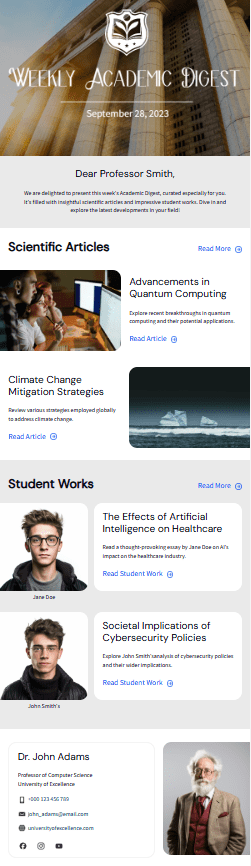
This is a classic newsletter template. The pairing of image and text snippet has become the default for newsletter layouts. It makes it easy for readers to scan quickly to decide if a story sounds interesting. While the images grab attention.
Notice the curved corners of the images and text boxes. It’s a small detail. But it adds to the sophisticated feel. Finally, the layout varies. There are four sections, four different arrangements. This breaks things up for the reader. It makes it more pleasant to look at and easier to scan.
Sign up to Stripo and get 1600+ free email templates
Conclusion: How to Create an Email Template in Outlook
Knowing how to create an email template in Outlook saves time when you’re sending similar messages on repeat. And you can create email headers to give your emails a professional look.
However, creating templates in Outlook has its limitations. Outlook’s email editor offers only basic formatting and design tools. It lacks the flexibility of modern drag-and-drop HTML email builders. That makes creating visually appealing newsletters challenging.
For newsletters, I strongly recommend importing HTML templates instead. Stripo has 1600+ high-quality templates. Plus user-friendly drag-and-drop editors to customize them.
Outlook won’t be a good tool to send email newsletters as your email list grows. You’ll be better off with a dedicated email marketing platform. We reviewed the best free and cheap email marketing tools and the top email newsletter software to help you choose one. You can also connect Stripo to free SMTP servers to send your campaigns.
FAQs about Outlook Email Templates
Can you create email templates in Outlook?
However, Outlook has limitations for creating templates. Especially if you want visually appealing emails. The built-in WYSIWYG editor lacks flexibility compared to email template builders like Stripo. Importing HTML templates from these email editors is a better way to send emails with good-looking templates.
How do I access Outlook templates?
In the classic Outlook desktop client, templates are stored on your computer. To access them, click New Items > More Items > Choose Form. The User Templates folder is the default location. This loads previously saved templates you can use in new emails.
What is the fastest way to create a template in Outlook?
In the classic Outlook for Windows client, you can save an email as a template to your device. Go to File > Save As and select Outlook Template (.oft) as the file type.
Where is my Outlook templates folder?
How do I manage email templates in Outlook?
In the classic desktop client, you can also manage templates via the User Templates folder. You can open, update, and resave templates as .oft files. However, sharing templates across devices or teams requires manual file transfers. Outlook does not support built-in template synchronization.