
Gmail SMTP Server 2026: Settings, Setup, Limits, & Alternatives
 Mor Mester
Quick Takeaways
1. The correct Gmail SMTP server is smtp.gmail.com. Use port 587 (TLS) or port 465 (SSL) for secure connections.
2. Free Gmail accounts are limited to 500 emails per day, while Google Workspace increases this to 2,000 emails per day.
3. If two-factor authentication is enabled, you must use an App Password instead of your regular Gmail password.
4. SMTP is only for sending email. IMAP is required to receive messages and keep your inbox synced across devices.
Email looks simple on the surface, but anyone who has set up Gmail with an app, website, or email client knows a lot is happening behind the scenes. Over the years, we’ve helped businesses deal with sending limits and decide when Gmail is enough and when it’s time to move on.
This step-by-step guide shows you how to send emails with the Gmail SMTP server. We’ll cover Gmail SMTP settings, the benefits, and limitations of using Gmail’s SMTP server.
What is SMTP?
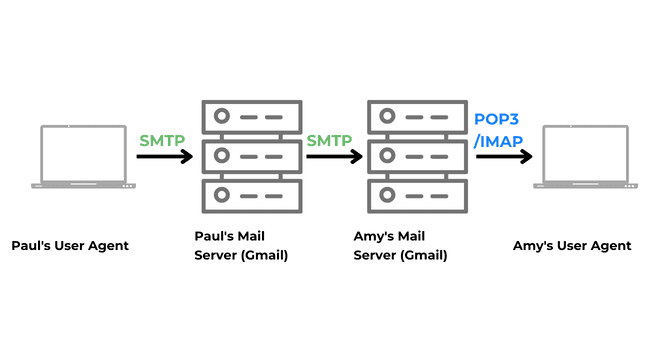
SMTP (Simple Mail Transfer Protocol) is the system that sends and delivers email across the internet. When you hit “Send” on an email, SMTP is the system that routes your message from your mail server to the recipient’s mail server. All major email inbox providers (like Gmail) use SMTP.
What is the Gmail SMTP server?
The Gmail SMTP server is Google’s outgoing mail server that lets you send emails from your Gmail or Google Workspace account using other email clients or software. The Gmail SMTP service allows third-party apps, websites, or email tools to send emails through your Gmail account. Think of it as Gmail’s mail dispatcher. It takes messages from external sources and routes them through Gmail’s email servers to the recipient’s inbox.
Why use Gmail’s SMTP?
Gmail is one of the most popular, free email inbox providers suitable for small sending volumes. It’s also known for reliability and great deliverability. Outgoing emails from Gmail’s servers are less likely to land in spam folders, thanks to Google’s trusted IPs and email handling policies. Gmail’s SMTP has encryption (TLS/SSL) and spam detection to keep your messages secure.
For more advanced use cases, Google also offers the Gmail API, which is different from SMTP and requires setup through the Google Cloud Console.
You can use Gmail’s SMTP server with both free Gmail accounts and Google Workspace accounts. The setup is essentially the same, but Workspace accounts have much higher sending limits. Free Gmail accounts are limited to sending 500 emails per day. Google Workspace users can send up to 2,000 emails per day. If you need to send more than 500 emails per day, get started with Google Workspace.
- Ends January 31, 2027
Apply the unique promotion code when prompted. This code is only valid for new Google Workspace users and the Standard plan. See additional terms and conditions
What are Gmail SMTP Settings?
The SMTP server for Gmail is smtp.gmail.com. To connect any application or email client to Gmail’s SMTP, you’ll need to enter the correct server settings. Here are the Gmail SMTP settings you should use:
- Gmail SMTP server address: smtp.gmail.com
- Gmail SMTP username: Your Gmail address (example@gmail.com)
- Gmail SMTP password: Your Gmail password or App Password
- Gmail SMTP port: 587 for TLS (Transport Layer Security), or 465 for SSL (Secure Sockets Layer)
- Gmail SMTP TLS/SSL required: Yes
Important: If your Google account has two-factor authentication, you can’t use your regular Gmail password for SMTP in most apps. Google will block the login for security. You need to generate an app password, a special 16-digit passcode for use with email clients. Create an App Password here. You may need to sign in to your Google Account. Using an App Password also prevents issues after password resets, which can otherwise break SMTP connections.
Google recommends using authenticated SMTP connections with TLS to improve security and deliverability.
While Gmail’s SMTP server is a great way to send emails, some limits are in place to prevent abuse. The limit is 100 recipients per message and 500 messages per day. If you exceed this limit, your account will be blocked by Google.
These limits shouldn’t be a problem for most users. If you need to send more than 500 messages daily, sign up to Google Workspace or consider using a free SMTP service.
How to Set Up Gmail SMTP in Your Email Client or App
Setting up Gmail’s SMTP server in an email client (like Microsoft Outlook, Apple Mail, Thunderbird) or a web app is easy. Here are the typical steps to get it working:
1. Turn SMTP on in your Gmail settings (App Password)
Before you can send emails through Gmail’s SMTP server, make sure your Gmail account is properly set up for SMTP access. If you don’t use 2-Step Verification, Google may have already restricted less secure app access. Turn on 2-Step Verification and create an App Password for SMTP.
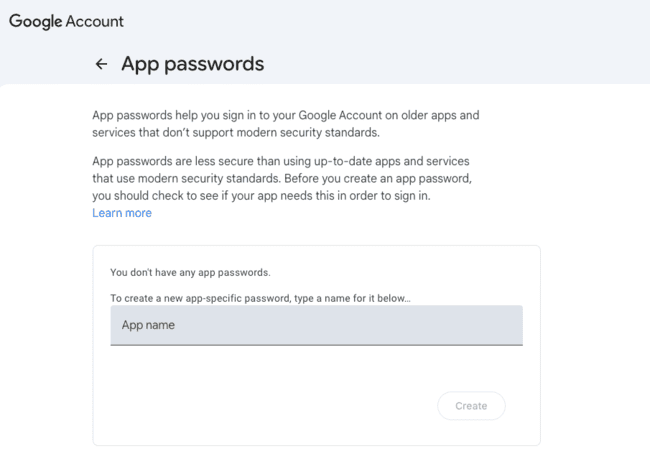
This step only needs to be done once per account. (If you skip this and try to use your normal password, Gmail might block the sign-in attempt.)
2. Find the SMTP settings section in your email client/app
Open the email client’s settings where you add or edit email accounts. Look for “Outgoing mail server” or “SMTP server” settings. If you are adding a new account, the setup wizard will ask for SMTP details after you enter your email address.
3. Enter Gmail SMTP server details
To set up your email client or app to send mail with Gmail’s SMTP server, you need to add this:
- Gmail SMTP server address: smtp.gmail.com
- Gmail SMTP username: Your Gmail address (example@gmail.com)
- Gmail SMTP password: Your Gmail password or App Password
- Gmail SMTP port: 587 when using TLS, or 465 when using SSL
- Gmail SMTP TLS/SSL required: Yes
4. Save settings and test the connection
Save this SMTP configuration. Most email clients have a “Test” or will automatically test by sending a dummy email. Send a test email to verify everything is working. The email should go out via Gmail’s SMTP and arrive in the recipient’s inbox.
For a WordPress site, you’ll usually configure Gmail SMTP using a plugin, like the WP Mail SMTP plugin. The process is similar to connecting an email client to Gmail’s SMTP.
How to Set Up IMAP in Gmail Settings
SMTP is only used for sending emails. To receive incoming emails and keep your own inbox synced across devices, you’ll also need to set up IMAP alongside SMTP.
POP (Post Office Protocol) is an older method for retrieving email that downloads messages from a POP server to a single device. And it doesn’t keep actions (like read/unread status) synced across your devices. Since most people check email on phones, laptops, and tablets, this can quickly get confusing, which is why we focus on IMAP instead.
Here are the steps to set up IMAP in Gmail:
- Open Gmail, go to Settings (gear icon in the top right), and click on See all settings.
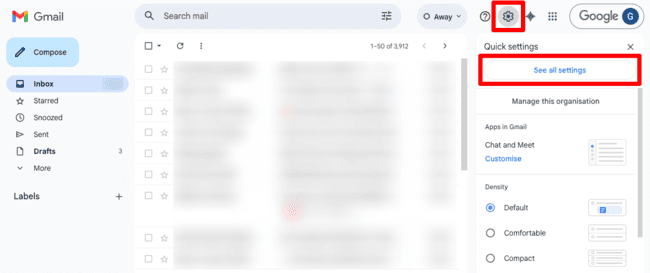
- Select the Forwarding and POP/IMAP tab.
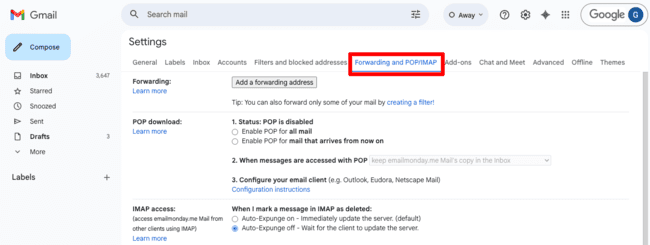
- Scroll to the IMAP access section and select “Enable IMAP.”
- Scroll to the bottom of the page and click Save Changes to confirm.
- Now, log in to your email client and enter these settings in the Incoming mail message server/IMAP section:
- Incoming Mail Server (IMAP server): imap.gmail.com
- Requires SSL: Yes
- Port: 993
- Display Name: Your Name
- Username: Your Gmail address (xxxx@gmail.com)
- Password: Your Gmail password
Benefits of Using Gmail’s SMTP Server
Gmail’s SMTP server is popular for a reason. If you’re a small business or freelancer, it covers a lot of basics really well without much setup.
- Good email deliverability. Emails you send through Gmail’s servers land in inboxes, not spam. Google has a strong sender reputation, so as long as you’re emailing real people and following basic best practices, Gmail will deliver your emails.
- Very reliable. Gmail is built on Google’s infrastructure, which means it’s extremely stable. You don’t have to worry about server downtime or failed sends when you’re emailing.
- Strong security. SMTP connections are encrypted, and Google actively monitors accounts for suspicious activity. Add in two-step verification and App Passwords, and you get strong security without having to think too hard about it.
- Free for light sending. If you’re sending fewer than 500 emails each day, Gmail SMTP is free and often more than enough.
- Easy to set up almost anywhere. Most email clients, apps, websites, and devices already support Gmail SMTP. You plug in the server details, authenticate, and you’re done.
- Works across all your devices. When paired with IMAP, Gmail keeps everything in sync across your phone, laptop, and desktop. Sent emails are stored in Gmail, easy to search, and accessible anywhere.
All of this makes Gmail SMTP a good starting point, but it has some limitations that can matter as your needs grow.
Limitations of Gmail SMTP and What to Do Instead
Gmail SMTP works well, but it’s not designed for businesses, email marketing, and transactional emails. Here’s where it falls short and what to do when you hit those limits.
- Low daily sending limits. Free Gmail accounts can send 500 emails per day. That’s fine for personal use and one-to-one emailing, but it’s easy to hit the ceiling if you use it for anything else. If you’re hitting limits, sign up to Google Workspace to increase daily sending to 2000 emails. For higher volumes, check out our review of the best free SMTP servers.
- Not built for email marketing. Gmail SMTP wasn’t designed for newsletters, promotions, or large campaigns. There’s no unsubscribe handling or compliance tools. And sending bulk emails through Gmail can quickly lead to problems. For newsletters and marketing emails, check out our review of the best email marketing platforms.
- It’s not designed for teams. Each SMTP connection is tied to a single Google account. Managing limits, passwords, and Google apps across a team can get messy. Google Workspace makes it easier to manage users and email settings.
- Risk of temporary sending blocks. If Gmail detects spammy behavior or repeated limit violations, Gmail may return error messages or temporarily block sending. Check out our review of email outreach tools to find tools designed for safe sending at larger volumes.
Concluding Gmail SMTP Server
Gmail’s SMTP server is reliable for sending everyday emails, especially if you’re working with small volumes or just getting started. It’s easy to set up, trusted by inbox providers, and works well for one-to-one communication.
Gmail SMTP isn’t meant to handle everything. As your sending volume grows or you move into email marketing, outreach, or transactional emails, you’ll need the right tools for the job.
For professional business email with higher daily sending limits and better team management, try Google Workspace.
- Ends January 31, 2027
Apply the unique promotion code when prompted. This code is only valid for new Google Workspace users and the Standard plan. See additional terms and conditions
For newsletters, try free and cheap email marketing tools. And for transactional emails, SMTP servers or email API services are a better fit.