
How to send HTML email in Gmail without coding
 Mor Mester
If you’re wondering how to send HTML emails in Gmail, you’re not alone. Gmail is one of the most popular email inbox providers in the world. More than 1.5 billion people use Gmail to connect with their contacts. Unfortunately, only a fraction of people know how to use HTML code in Gmail.
Since Gmail was introduced in 2004, there have been various changes. One of the initial changes was to remove the HTML editor entirely. The Gmail team decided to keep only the WYSIWYG editor for email sending.
The WYSIWYG editor is enough in most cases. But sometimes you want to send HTML email templates with designs.
In the past, users have had to experiment with complex workarounds and hacks to create HTML emails. Fortunately, there is also an easy way. Here’s everything you need to know about creating HTML emails without coding in Gmail.
The best way to send HTML email with Gmail without coding
Creating HTML email messages that look great without coding should be simple. That’s why HTML email editors exist. Tools like Stripo provide users with a flexible email editor. This makes it easy to create a professional email and send it with Gmail.
Get started creating HTML email with Stripo
1. Choose a template
Log in to Stripo and click New Message to start creating your template. There are 1600+ professional, responsive templates to choose from. Some are also free to use with Gmail.
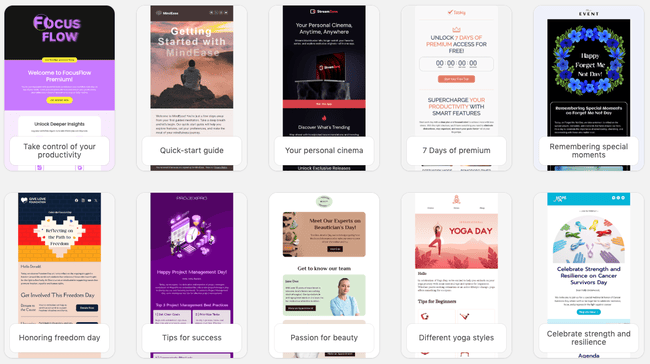
Choose the best-looking template for your campaign, and then you can head into the editor.
2. Customize the template
Make your changes in the HTML email builder. You can experiment as much as you like with the templates to make them stand out.
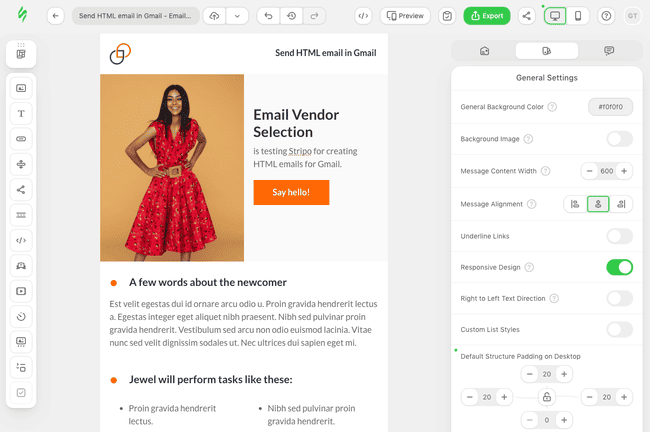
Everything is very easy to use here, so you shouldn’t have any trouble making your template look great. The builder is suitable for beginners. Check out our guide on creating HTML emails for instructions on how to build a template in Stripo.
3. Add template to Gmail
After you’re done designing your email, click “Export” at the top. This will open a pop-up with all the ways to export templates from Stripo. Select “Application”, then choose “Gmail”.
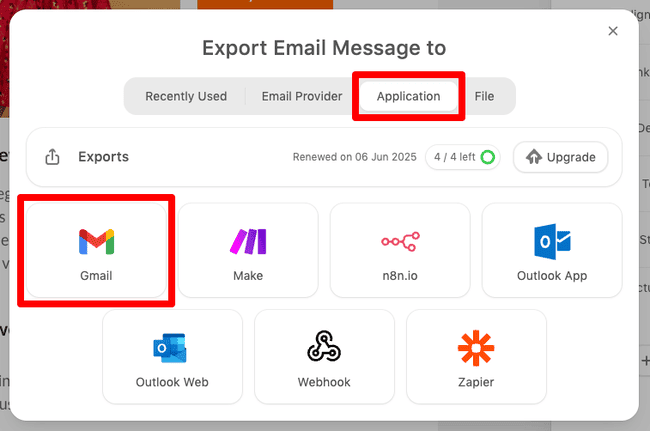
Follow the steps to sign in to your Gmail, and you’ll find your email in your Drafts folder.
Gmail will remove media queries when you send HTML email templates. This means that recipients will see the desktop version of your email but they won’t see any horizontal scroll.
Get started creating HTML email in Stripo
4. Add contacts and send the email
Next, go into your Gmail inbox and open your drafts folder. Your Stripo email should be your most recent draft. Click on it, and your template will open in the Gmail compose window.
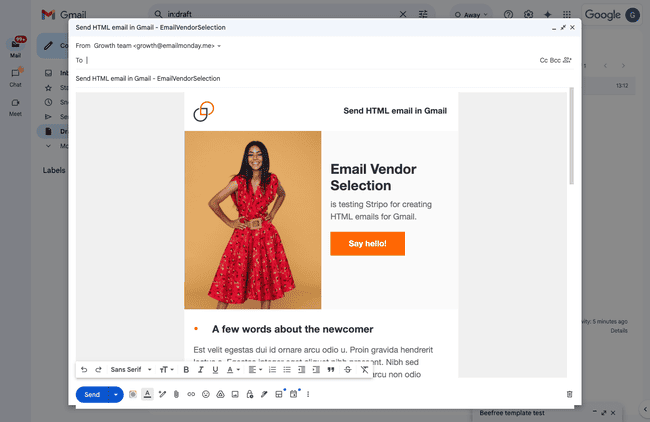
From here, you can customize the subject line and “To” field. Once you’re ready, click “Send” as normal.
There are various ways to add your contacts to your email. You can copy-paste the recipients into the BCC. This will give you a maximum of 2,000 people you can add with Google Workspace. Alternatively, you’ll be able to add 500 contacts with a personal Gmail account.
Using BCC ensures your contacts won’t see the other emails you’re sending to. If you’re getting serious about email marketing, choose one of the best free and cheap email marketing tools. These platforms have all the features for creating and sending email marketing campaigns.
2 alternative ways to send HTML emails in Gmail
Use layouts in Gmail (Google Workspace)
If you have a Google Workspace account, you can create HTML emails with a visual editor inside Gmail. Here’s how.
Open Gmail, click Compose and the Layout icon. If you don’t see it, click on the three dots to find it. Then, choose one of the default layouts or create one from scratch.

You can insert, resize, and rearrange text, images, buttons, and dividers in the visual editor. And use the theme tools to adjust colors, fonts, and spacing.
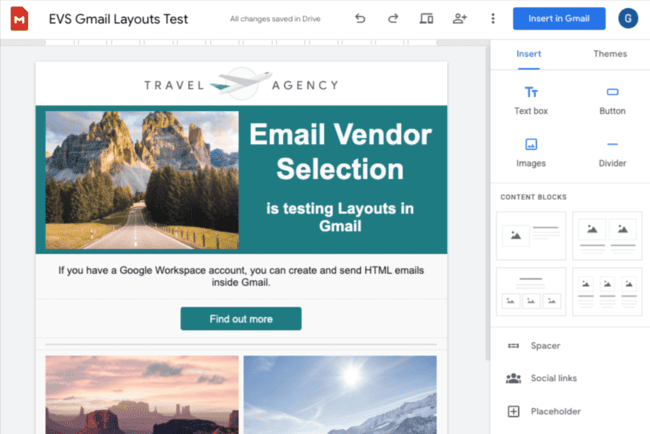
Once you’re happy with the layout, preview it in mobile, tablet, and desktop views, then click Insert in Gmail to drop it into the Gmail compose window. Your HTML email is now ready to send.
- Ends January 31, 2027
Apply the unique promotion code when prompted. This code is only valid for new Google Workspace users and the Standard plan. See additional terms and conditions
Copy-paste rendered HTML into Gmail
You can also insert HTML into Gmail by copy-pasting. Start by exporting your email as an HTML file. Open the file in your browser to confirm it looks the way you want it.
Once it looks good in the browser, select the entire page (CTRL + A or CMD + A) and copy it. Then paste it straight into Gmail’s compose window and send. That is it. The email should land in the inbox exactly as it appeared in your browser preview. Remember to copy the rendered preview, not the raw HTML code.
There’s also the option to use a mass email Chrome extension for Gmail, like GMass.
Rules for sending HTML emails with Gmail
When sending HTML emails in Gmail, there are some rules to follow. If you’re using free editors like Stripo for HTML, you should be safe. But if you’re writing custom HTML code for your email, remember:
- Images must be hosted online: If you add images to an email, they need to be saved properly and hosted online. All images must be uploaded to the internet and referenced with a link. If possible, store images on your own server. You can also use Google Drive. When using your Google Drive, make sure the link is public.
- External style sheets won’t work: You can’t access external style sheets. You can use embedded CSS or inline CSS within HTML tags. But, Gmail doesn’t support external CSS files.
- Some HTML won’t be supported: Check this list. Some of the HTML that works on a web page won’t be supported in Gmail messages. You’ll need to check that everything looks good in your rendered HTML email before sending your emails.
- Do not use web fonts: Gmail doesn’t support web fonts. You will need to use the standard fonts provided. Alternatively, you can make an image of text, like logos. Then, once you have your image, link to the image in HTML. Once again, remember to use a hosted image.
- Using tables is a good idea: If you’re not using a drag-and-drop HTML editor, use tables. However, there are still issues to watch out for. Make sure your HTML tables work with email HTML testing tools. Here is a list of email testing tools.
- Keep it simple: Gmail isn’t always predictable with HTML support. Because the supported options can change, keeping things simple is a good idea. Writing a simple email also helps your recipient’s email clients render content properly.
- Avoid Google Docs: While there are tutorials that show you how to use Google Docs for HTML emails, this option isn’t ideal. You might find that what you see in Google Docs isn’t exactly the same as the content in the email.
- Create a template: If you’re not using HTML templates from Stripo, create your own. Once you have an HTML file formatted, save it outside of Gmail. This will help you to set up HTML emails rapidly in the future.
Remember, Gmail is constantly evolving. Google consistently updates Gmail. It’s important to stay up-to-date with the latest changes and features.
You might need to use some specific HTML email testing tools to check if your HTML emails really do work. Consider sending a test email to yourself before sending it to the full list.
Ideally, it’s best to simplify things by using a service like Stripo. With Stripo, you don’t have to double-check the proper structure of your HTML. The content uses inline styles and designs made just for Gmail. This makes sure you can send an HTML email without the stress.
Wrap up: send HTML Gmail emails
Learning how to add HTML to your email template in Gmail doesn’t have to be a nightmare. Though the mailbox provider offers only WYSIWYG editing, there are workarounds. You can create HTML emails in Gmail to suit your unique needs.
Just keep in mind if you’re going to be working on your HTML without help, there are a lot of issues to sidestep. You might struggle at first to ensure your email works with every screen size. You could also find that your email templates stop working after a while.
Rather than trying to code your own email template, we recommend using an HTML email editor. Free and paid email editors are ideal for creating custom HTML.
Frequently Asked Questions (FAQ)
Can you send an HTML email in Gmail?
The Stripo editor saves files so you can reuse templates later. What’s more, you can avoid making common mistakes with your templates when using custom HTML.